Web HostingBudget-friendly shared hosting plans
 Domains SearchFrom .com to unique country domains, explore and register extensions worldwide.
 WordPress HostingPower your blog or business with WordPress hosting.
 Email HostingSimple, secure email hosting that helps you stay connected and professional.
 Reseller HostingStart your own hosting business with easy and reliable reseller hosting plans.
 AffiliateJoin our affiliate program and earn commissions every time you bring in new customers.
 cPanel HostingHosting powered by cPanel, the world’s most user-friendly control panel.
 Windows HostingBuilt for Windows applications and websites
 IN Domain PricesDon’t miss out on the best domain deals in India!
 WHOIS LookupFind out who owns a domain name with a quick and easy WHOIS search.
 Domain TransferTransfer your domain to us and enjoy reliable support every step of the way.
 .Com DomainGet the most trusted domain for worldwide credibility
 All TldsSearch and register domain extensions worldwide.
 SSL CertificatesProtect your website with trusted SSL certificates and keep customer data safe.
 VPS HostingPowerful virtual servers. Full root access. Reliable uptime.
 Managed VPS HostingNot a tech expert? Choose our fully managed VPS service.
 Dedicated ServersTake full power and total control of your own physical server.
 AI Website BuilderCreate stunning websites instantly with our easy AI builder.
 Online ShopBuild your eCommerce store easily, no coding, just growth.
 Web Design ServicesGet a website built for your brand and designed for your goals.
 Contact UsReach out to us for support or questions.
 SupportGet answers and how-to guides for all our services.
 BlogRead our latest blogs on web hosting, online business, digital marketing, and other helpful topics.
You’ve built a website. Maybe it’s your business, a project, or something you’ve been working on for months.
Now comes the real question: where do you put it?
If you’re running ASP.NET, working with Microsoft technologies, or just prefer the Windows ecosystem, then Windows hosting is your answer.
Not Linux. Not shared hosting that’s half-broken. But Windows Server.
Looking to host a website on a Windows server? This guide has got your back.
I’ll walk you through exactly how to host a website on Windows Server, what you need before you start, and how to avoid the common traps that waste hours.
By the end, you’ll know how to get your site live, configure it properly, and troubleshoot issues like a pro.
Let’s get into it.
What Does Windows Server Mean?
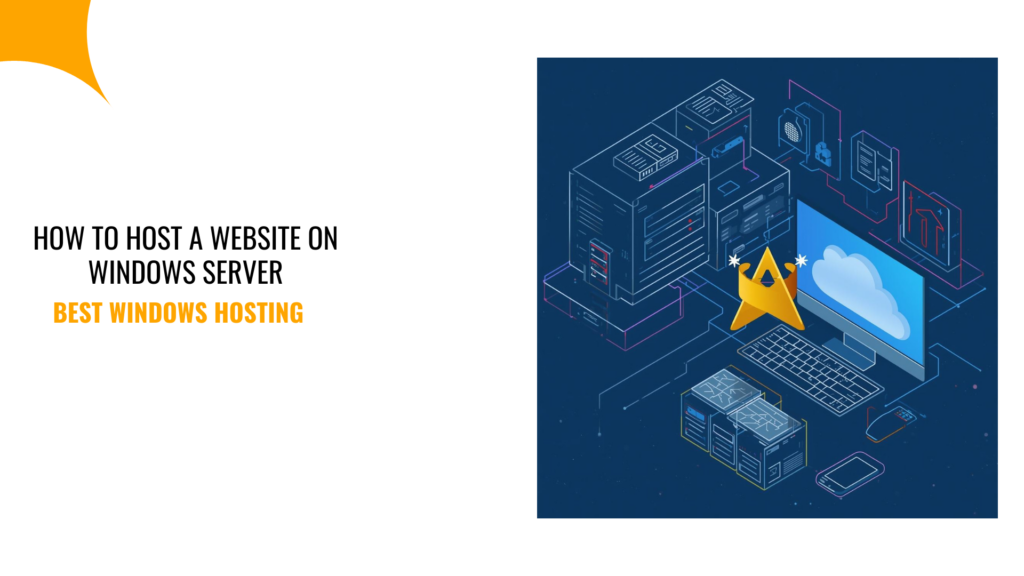
Windows Server is Microsoft’s server operating system. Think of it as Windows 10 or 11, but built specifically for hosting websites, running applications, and managing networks.
It’s not meant for browsing or gaming. It’s meant for performance, stability, and control.
The key tool you’ll use is IIS (Internet Information Services). That’s Microsoft’s web server software, which handles requests, serves your pages, and manages everything happening behind the scenes.
Therefore, if your site runs on ASP.NET, .NET Core, or uses Windows-specific frameworks, Linux hosting won’t cut it.
Instead, you need a Windows Server, which is designed to run Microsoft technologies smoothly.
Plus, it integrates perfectly with tools like SQL Server, Active Directory, and Azure.
What You Need Before Hosting a Website on Windows Server
Don’t just jump in. You’ll waste time backtracking if you’re missing something.
Here’s what you need:
- A Windows hosting plan: You can’t host on Windows Server without access to one. You need a VPS or dedicated server running Windows. Shared hosting might work for small projects, but if you want control, go with VPS.
- Your website files: Have your HTML, CSS, JavaScript, or ASP.NET files ready. If you’re running a CMS or application, make sure all dependencies are included.
- Domain name: You need a domain pointing to your server’s IP address. You can register one through Truehost and just update the DNS records to point to your Windows Server IP.
- Basic understanding of IIS: You don’t need to be an expert, but knowing what IIS does and how to navigate it helps. Yes, I’ll explain the steps, but familiarity speeds things up.
- Remote desktop access: Most Windows hosting gives you RDP (Remote Desktop Protocol) access. That’s how you log in and manage your server, so you’ll need the credentials from your hosting provider.
Got all that? Good. You can confidently proceed to get your website live by setting up a Windows server.
Step-by-Step: How to Host a Website on Windows Server
This is where it gets real. Follow these steps exactly.
Step 1: Connect to Your Windows Server
Use Remote Desktop to log in.
On Windows, search for “Remote Desktop Connection.” Enter your server’s IP address and credentials.
You’re now inside your server, which looks like a regular Windows desktop, but this is your hosting environment.
Step 2: Open IIS Manager
Press Windows + R, type inetmgr, and hit Enter. That opens IIS Manager, which is your control panel for hosting.
If it’s not installed, you’ll need to add it.
Go to Server Manager > Manage > Add Roles and Features. Select “Web Server (IIS)” and install it.
Step 3: Create a New Website
In IIS Manager, right-click “Sites” in the left panel, then select “Add Website.”
Fill in the details:
- Site name: Give it a clear name, e.g., MyWebsite.
- Physical path: Point to the folder where your website files are stored, e.g., C:\inetpub\wwwroot\mywebsite.
- Binding: Set the IP address (or leave it as “All Unassigned”), choose port 80 for HTTP, and enter your domain name.
Lastly, click OK, and your site is now created.
Step 4: Upload Your Website Files
Copy your files into the folder you specified in the physical path. Use RDP to drag and drop files, or use FTP if your hosting supports it.
While doing these, make sure your homepage is named index.html, index.aspx, or default.aspx because IIS looks for these files first.
Step 5: Test Your Website
Open a browser inside the server and type localhost or your domain name. If your site loads, you’re good.
If it doesn’t load, check the physical path and make sure the files are in the right folder.
Step 6: Configure DNS and Make It Public
Log in to your domain registrar and update the A record to point to your server’s public IP address. This connects your domain to your server.
However, DNS changes can take a few hours, but once propagated, your site will be live worldwide.
That’s it. Your website is hosted on a Windows Server.
How to Install and Run ASP.NET or PHP on Windows Hosting
Hosting static HTML is easy, but running dynamic applications takes a bit more setup.
Here’s how to get ASP.NET or PHP working.
1) For ASP.NET
ASP.NET is built into IIS, so you just need to enable it.
Here’s how:
Go to Server Manager > Manage > Add Roles and Features. Under “Web Server Role (IIS)” expand “Application Development” then check “.NET Extensibility” and “ASP.NET.”
Install it and restart IIS if prompted.
Now, upload your ASP.NET files to your site folder and make sure web.config is included, as it tells IIS how to handle your application.
Finally, open your site in a browser. If you see your app running, you’re done.
If you get errors, check the Application Pool.
In IIS Manager, click “Application Pools” and make sure your site’s pool is set to the correct .NET version, e.g., .NET 4.x or .NET Core.
2) For PHP
PHP isn’t native to Windows, but you can run it with some setup.
Start by downloading PHP for Windows from php.net and extracting it to C:\PHP.
Next, in IIS Manager, open “Handler Mappings” for your site and click “Add Module Mapping.”
Then, set these values:
- Request path: *.php
- Module: FastCgiModule
- Executable: C:\PHP\php-cgi.exe
- Name: PHP_FastCGI
Afterward, click OK.
Then, upload your PHP files and test by creating a simple info.php file with <?php phpinfo(); ?> inside. Open it in your browser.
If you see the PHP info page, PHP is running.
If not, check that the path to php-cgi.exe is correct and that PHP is properly configured.
Common Issues When Hosting on Windows Server (And Fixes)
Things break. Here’s how to fix them fast, if they happen.
1) 403 Forbidden Error
This happens when your site is loading, but you see a permissions error.
To fix that, right-click your website folder. Then, go to Properties > Security and make sure IIS_IUSRS and IUSR have read permissions.
2) Website Not Loading at All
Happens when your domain isn’t resolving, or the page won’t load.
If so, check your DNS settings and make sure the A record points to the correct IP. Also, verify your site is running in IIS, and the binding is correct.
3) Application Pool Keeps Stopping
You will notice this issue if your site goes down randomly.
To fix it, in IIS Manager, click “Application Pools,” right-click your pool and select “Advanced Settings.”
Then you should disable “Rapid-Fail Protection” temporarily to see if it helps. Check your error logs for clues.
4) ASP.NET Not Working
You get errors when loading .aspx pages.
But there’s a quick fix!
Make sure the correct .NET version is selected in your Application Pool. Also, check that ASP.NET is enabled in Server Roles.
5) Slow Performance
Your site can be loading, but it’s painfully slow.
In such a case, check your server resources.
Low RAM or CPU can kill performance, so upgrade your hosting plan if needed. Also, enable output caching in IIS to speed things up.
FAQs
1) Can you host a website on a Windows Server?
Yes. Windows Server is built for hosting. It runs IIS, which serves websites just like Apache or Nginx on Linux.
So, if your site uses ASP.NET, Windows Server is often the best choice. It also supports PHP and other languages with the right setup.
2) How do you make an IIS-hosted website public?
To make an IIS-hosted website, point your domain’s DNS A record to your server’s public IP address and make sure your IIS site binding includes your domain name.
Then, open port 80 (and 443 for HTTPS) in your firewall. Once DNS propagates, your site will be accessible to anyone.
Final Thoughts: Getting Started with Windows Hosting in India
Hosting a website on Windows Server isn’t complicated once you know the steps.
You set up IIS, upload your files, configure your domain, and you’re live.
The key is preparation is to have your files ready, understand the basics of IIS, and don’t skip testing before going public.
Also, choosing a reliable Windows hosting provider in India is critical.
Thankfully, at Truehost, we have you covered.
With fast servers, easy management, and support when you need it, we make hosting simple so you don’t fight with server configs.
Ready to get started? Grab these Windows hosting offers and put your website online today.