Web HostingBudget-friendly shared hosting plans
 Domains SearchFrom .com to unique country domains, explore and register extensions worldwide.
 WordPress HostingPower your blog or business with WordPress hosting.
 Email HostingSimple, secure email hosting that helps you stay connected and professional.
 Reseller HostingStart your own hosting business with easy and reliable reseller hosting plans.
 AffiliateJoin our affiliate program and earn commissions every time you bring in new customers.
 cPanel HostingHosting powered by cPanel, the world’s most user-friendly control panel.
 Windows HostingBuilt for Windows applications and websites
 IN Domain PricesDon’t miss out on the best domain deals in India!
 WHOIS LookupFind out who owns a domain name with a quick and easy WHOIS search.
 Domain TransferTransfer your domain to us and enjoy reliable support every step of the way.
 .Com DomainGet the most trusted domain for worldwide credibility
 All TldsSearch and register domain extensions worldwide.
 SSL CertificatesProtect your website with trusted SSL certificates and keep customer data safe.
 VPS HostingPowerful virtual servers. Full root access. Reliable uptime.
 Managed VPS HostingNot a tech expert? Choose our fully managed VPS service.
 Dedicated ServersTake full power and total control of your own physical server.
 AI Website BuilderCreate stunning websites instantly with our easy AI builder.
 Online ShopBuild your eCommerce store easily, no coding, just growth.
 Web Design ServicesGet a website built for your brand and designed for your goals.
 Contact UsReach out to us for support or questions.
 SupportGet answers and how-to guides for all our services.
 BlogRead our latest blogs on web hosting, online business, digital marketing, and other helpful topics.
If you own a website, you’ve probably had questions like:
- Is anyone actually visiting my website?
- How many people could be on my site right now?
- Where is most of my traffic coming from?
- Why isn’t my website showing up on Google?
Without any tools, you’re essentially guessing. And guessing leads to missed opportunities.
Google Analytics and Google Search Console help with this.
In this guide, you’ll learn exactly what these tools are and how to connect them to your website, even if you’ve never done anything technical before.
What Is Google Analytics?
Google Analytics is a free web analytics platform that tracks and reports on everything that happens on your website.
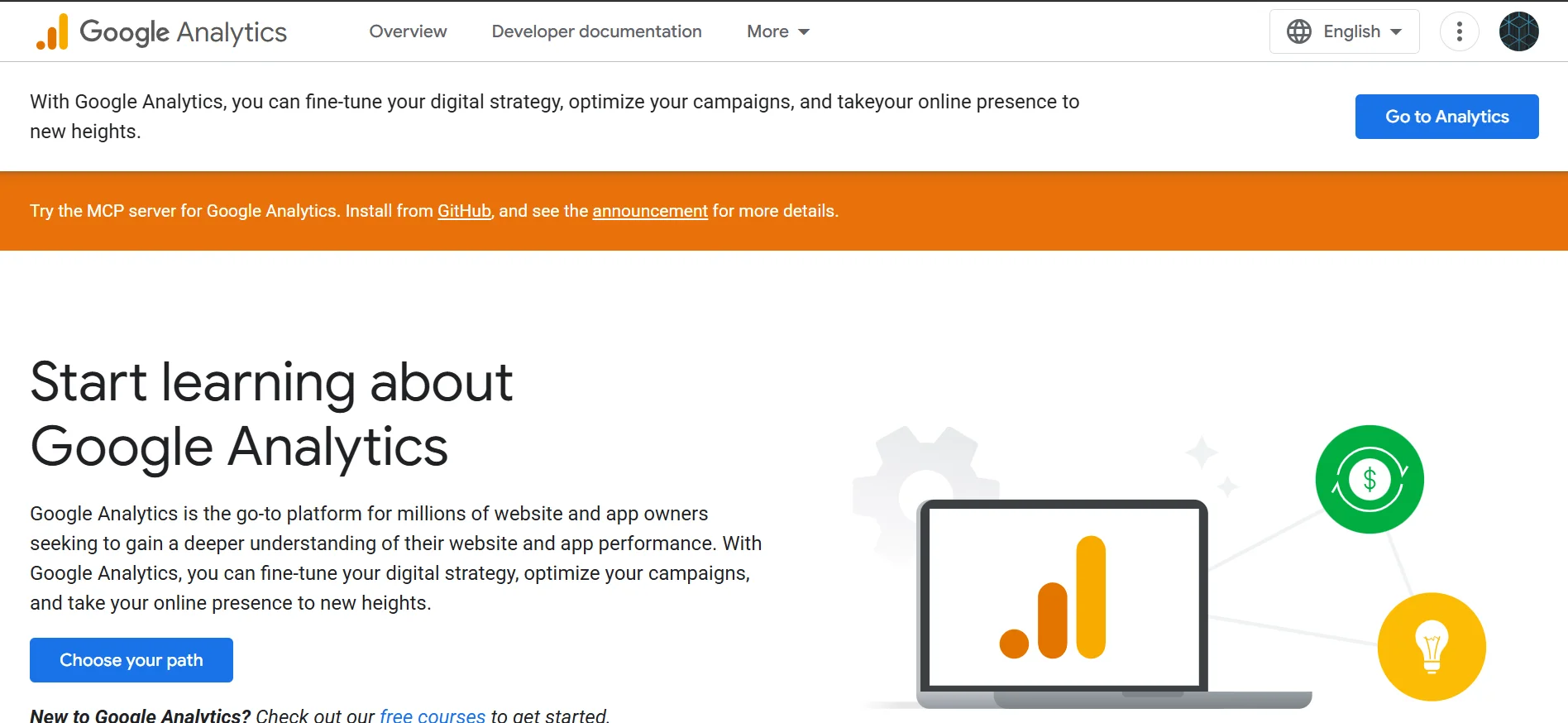
The current version is called Google Analytics 4 (GA4), and it uses an event-based tracking model.
This means it records specific actions people take, like clicking a button, watching a video, or completing a purchase, rather than just counting page views.
Why Link Your Website to Google Analytics?
Linking your website to Google Analytics is essential because you can:
- Understand your audience – Knowing where your visitors come from, what devices they use, and which content they engage with helps you create more of what actually works.
- Measure your marketing – If you’re running social media campaigns, email newsletters, or paid ads, Analytics shows you which channels are driving real traffic and which are wasting your time.
- Identify problem pages – If a particular page has a high drop-off rate or very low engagement, that’s a signal that something needs fixing.
- Track growth over time – You can compare traffic month over month or year over year to see whether your website is actually growing.
- Make smarter decisions – Every change you make to your website can be measured to see if it improves results.
What Is Google Search Console?
Google Search Console (GSC) is a free tool provided by Google to help you monitor, manage, and improve how your website appears in Google Search results.
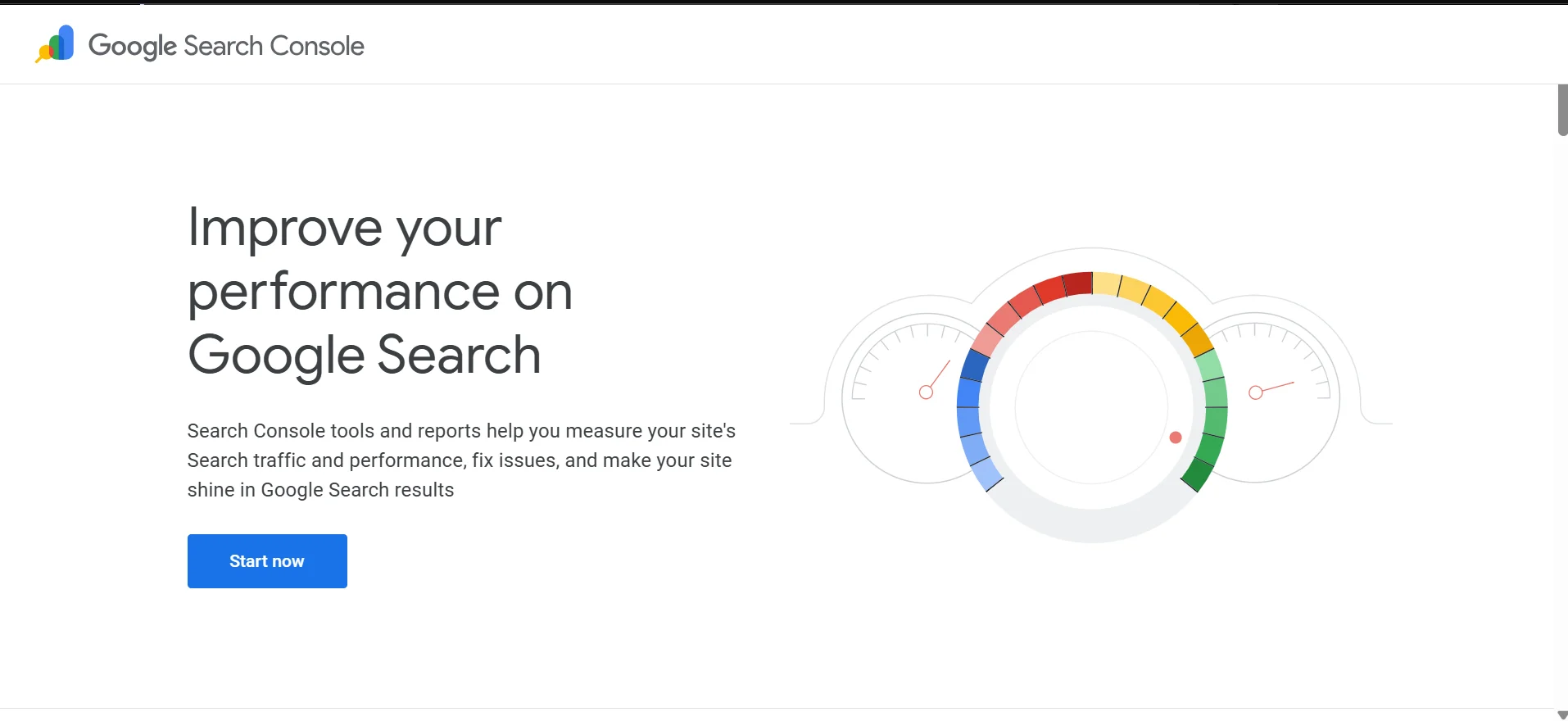
While Analytics focuses on what visitors do after they arrive on your site, Search Console focuses on what happens before.
Why Link Your Website to Google Search Console?
If you care about your website showing up in Google, Search Console is not optional.
Here’s why:
- You’ll know if Google can actually find your pages – A page that isn’t indexed won’t appear in search results no matter how good the content is. GSC tells you exactly which pages are indexed and which aren’t.
- You’ll discover what people are searching for – The search queries report reveals the real words your audience uses to find content like yours. This is gold for content planning and SEO.
- You’ll catch technical problems early – Crawl errors, broken redirects, mobile usability issues, and slow page speeds can all quietly hurt your rankings. GSC surfaces these problems so you can fix them.
- You can speed up indexing – When you publish a new page or make major updates, you can request indexing directly in Search Console rather than waiting for Google to find it on its own.
- You’ll understand your ranking performance – GSC shows which pages are ranking and for which queries. This helps you double down on what’s already working and improve what isn’t.
How to Link Your Website to Google Search Console
Here are the steps you should follow to effectively link your website to Google Search Console:
Step 1) Sign in to Google Search Console
Go to the Google Search Console Site and sign in with your Google account. Use the same account you plan to use for Google Analytics.
Step 2) Add a property
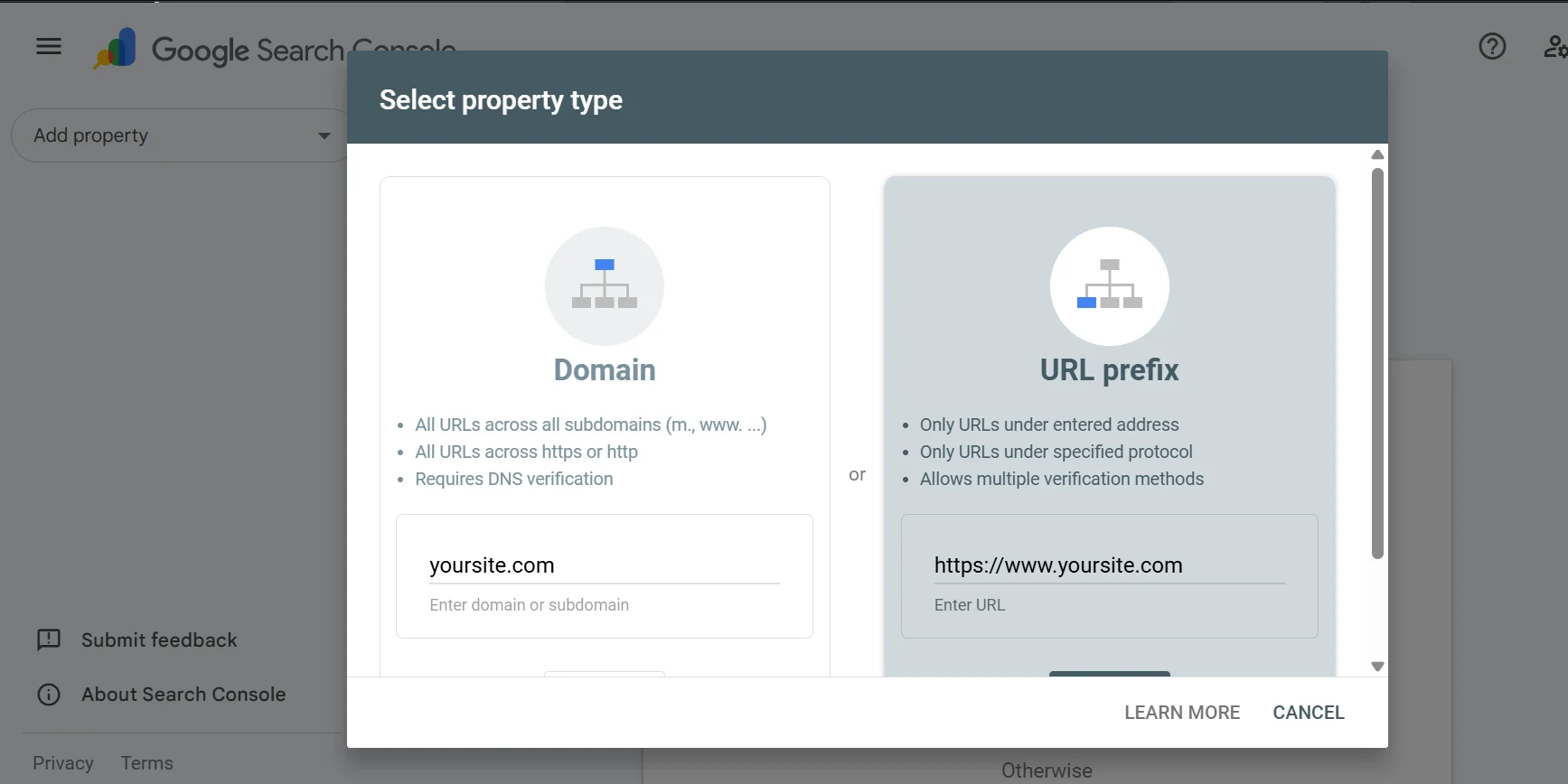
Click Add Property in the top-left corner.
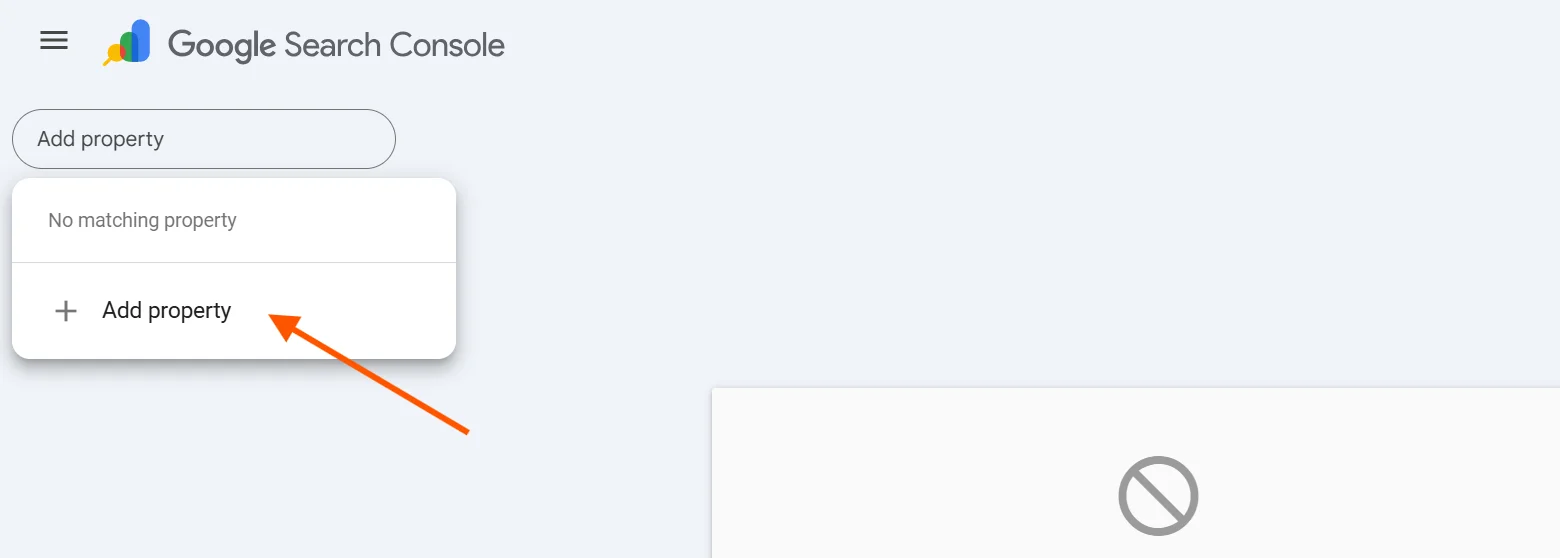
You’ll see two options:
- Domain – This covers all versions of your site (http, https, www, non-www, and all subdomains). Requires DNS verification.
- URL prefix – This covers only the specific URL you enter (e.g., https://yoursite.com). It also offers multiple verification methods. This is the recommended starting point for beginners.
Step 3) Choose a verification method
Google needs to confirm you own the site before granting access.
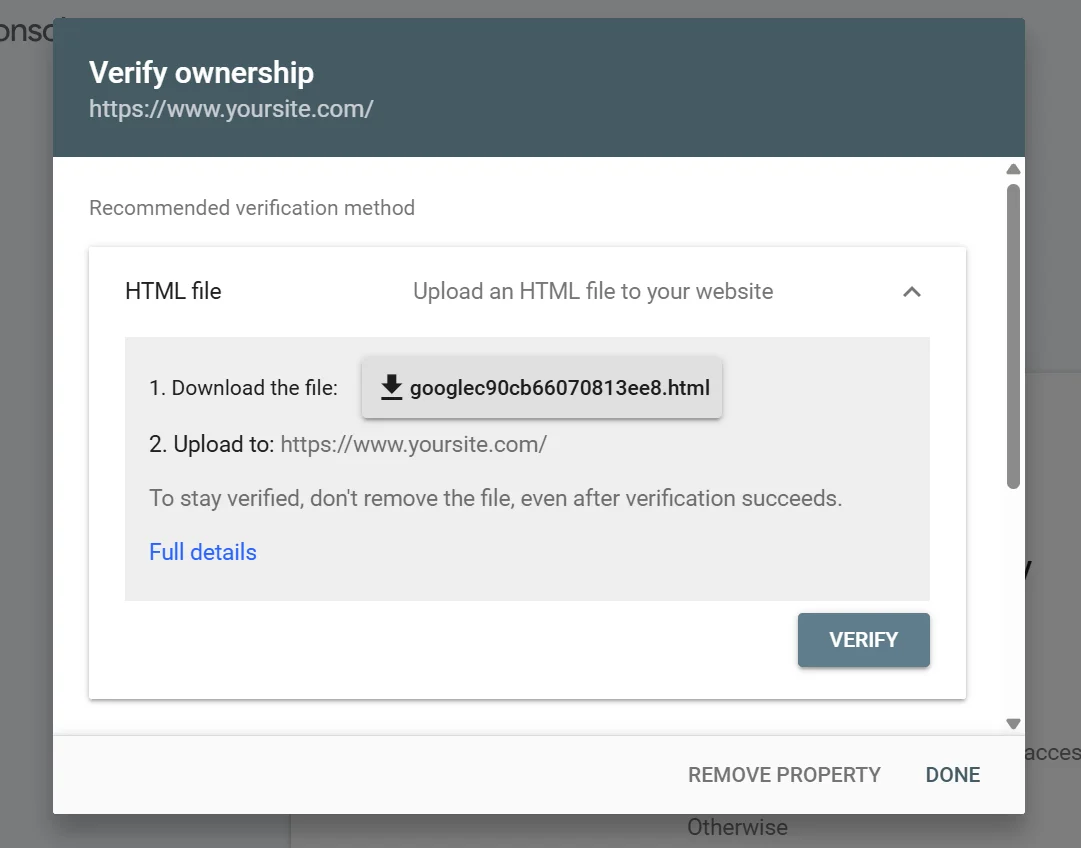
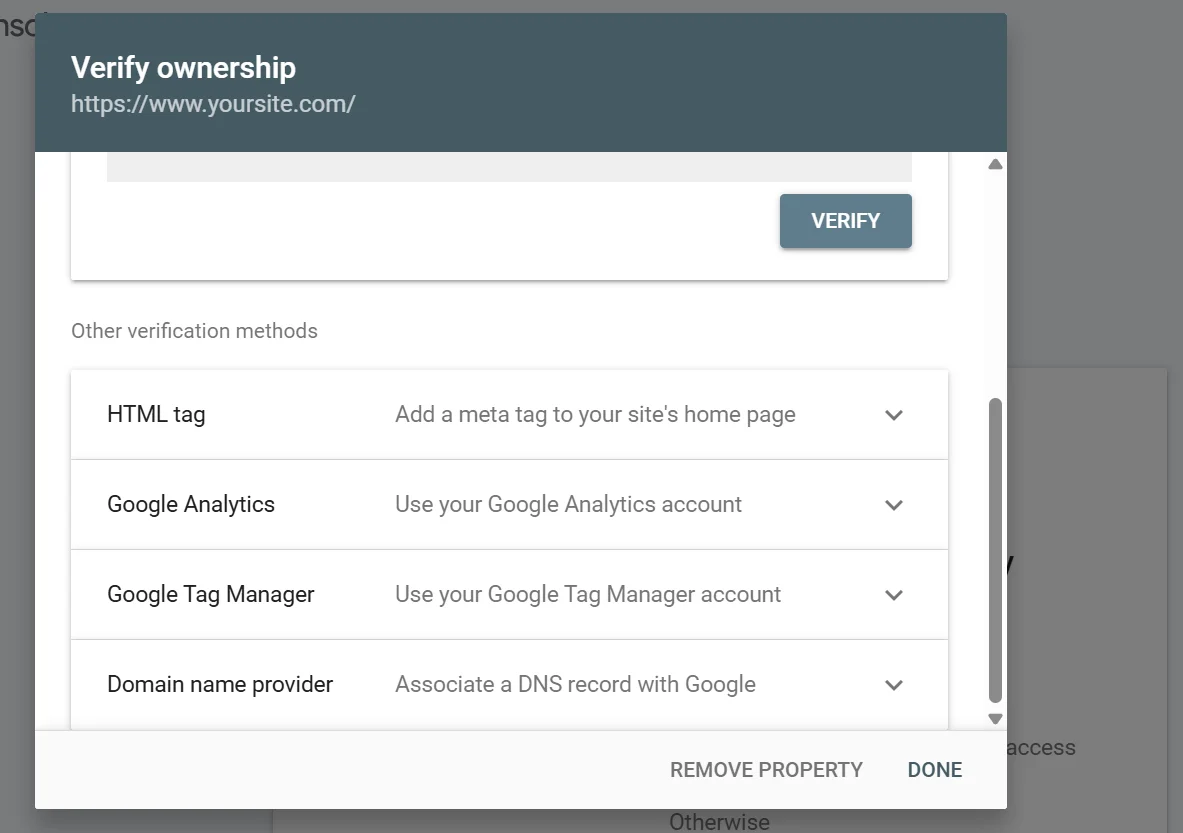
You have several verification methods:
- HTML file -Here, you’ll need to download a small file from Google and upload it to your website’s root folder via FTP or your hosting file manager.
- HTML meta tag – Here, you’ll have to copy a <meta> tag and paste it into the <head> section of your homepage’s code
- Google Analytics – If GA4 is already installed on your site, GSC can use it to verify ownership automatically
- Google Tag Manager (GTM) – If you use GTM on your site, this verification method is seamless
- DNS TXT record – Here, you’ll need to log into your domain registrar or hosting provider and add a TXT record to your DNS settings (required for the Domain property type)
Step 4) Complete verification
Once you’ve applied your chosen method, click Verify.
Google will check for the code, file, or DNS record.
If it finds it, your property will be verified, and you’ll gain full access to the dashboard.
Step 5) Submit your sitemap
After verifying, navigate to Sitemaps in the left-hand menu.
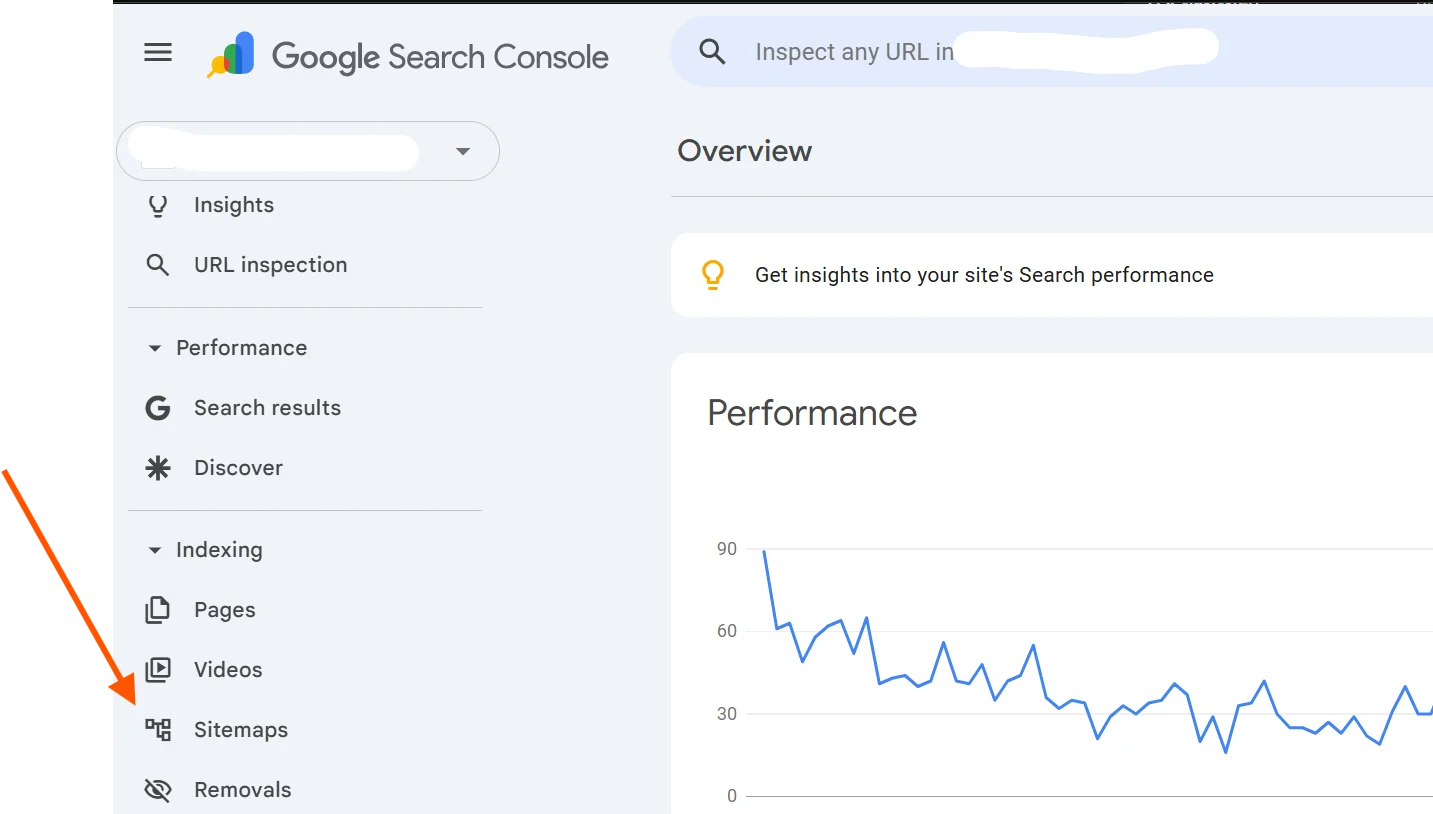
Enter your sitemap URL. This is usually https://yoursite.com/sitemap.xml.
Then, click Submit.
This tells Google about all the pages on your site and helps them get indexed faster.
Note: It typically takes 24-72 hours for data to start populating in your Search Console dashboard. Some reports, like search queries, may take a few days longer.
How to Link Your Website to Google Analytics
If you’ve successfully linked GSC, you can follow these steps to link GA4.
Step 1) Log In To Google Analytics
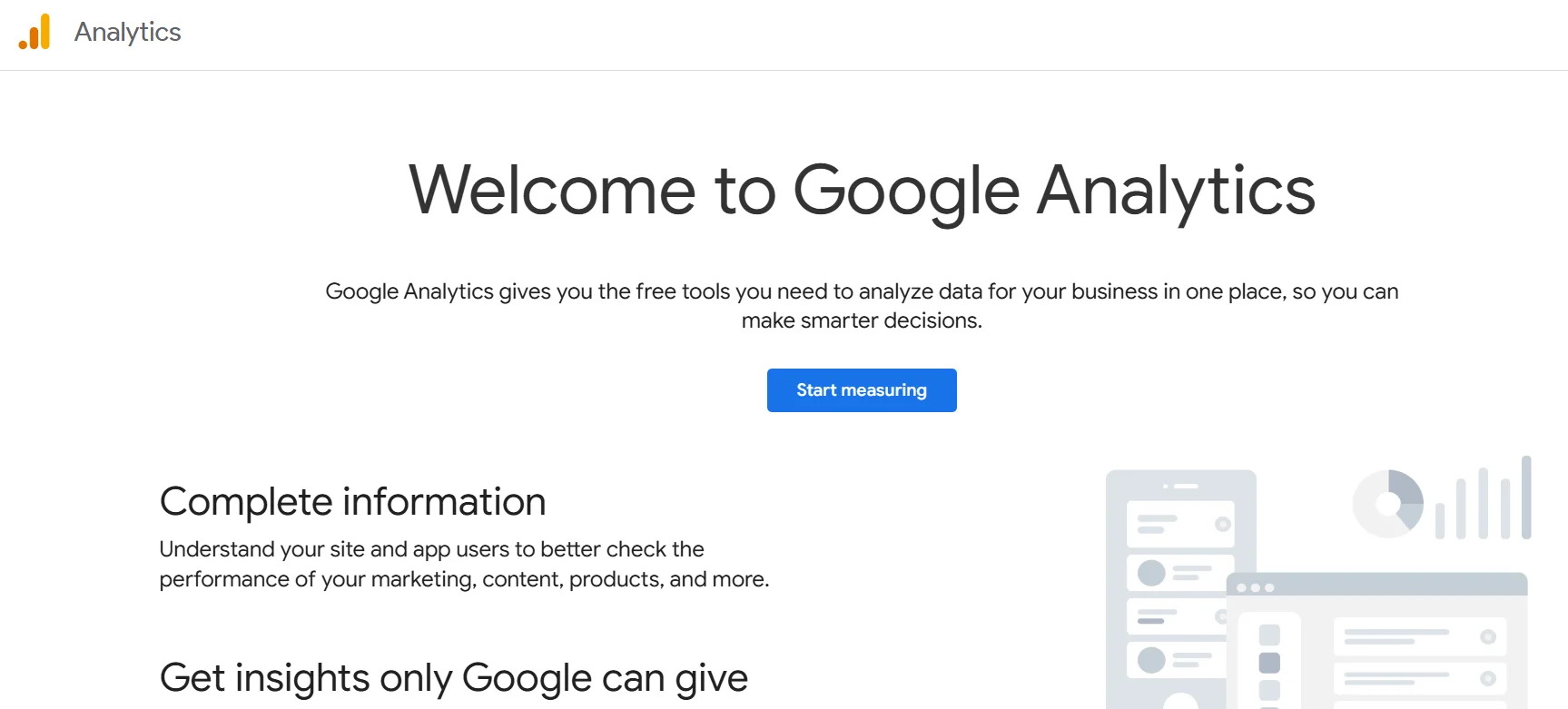
Go to the Google Analytics Site, click Go To Analytics, then sign in with your Google account.
Next, click Start Measuring.
Step 2) Set up a GA4 account and property
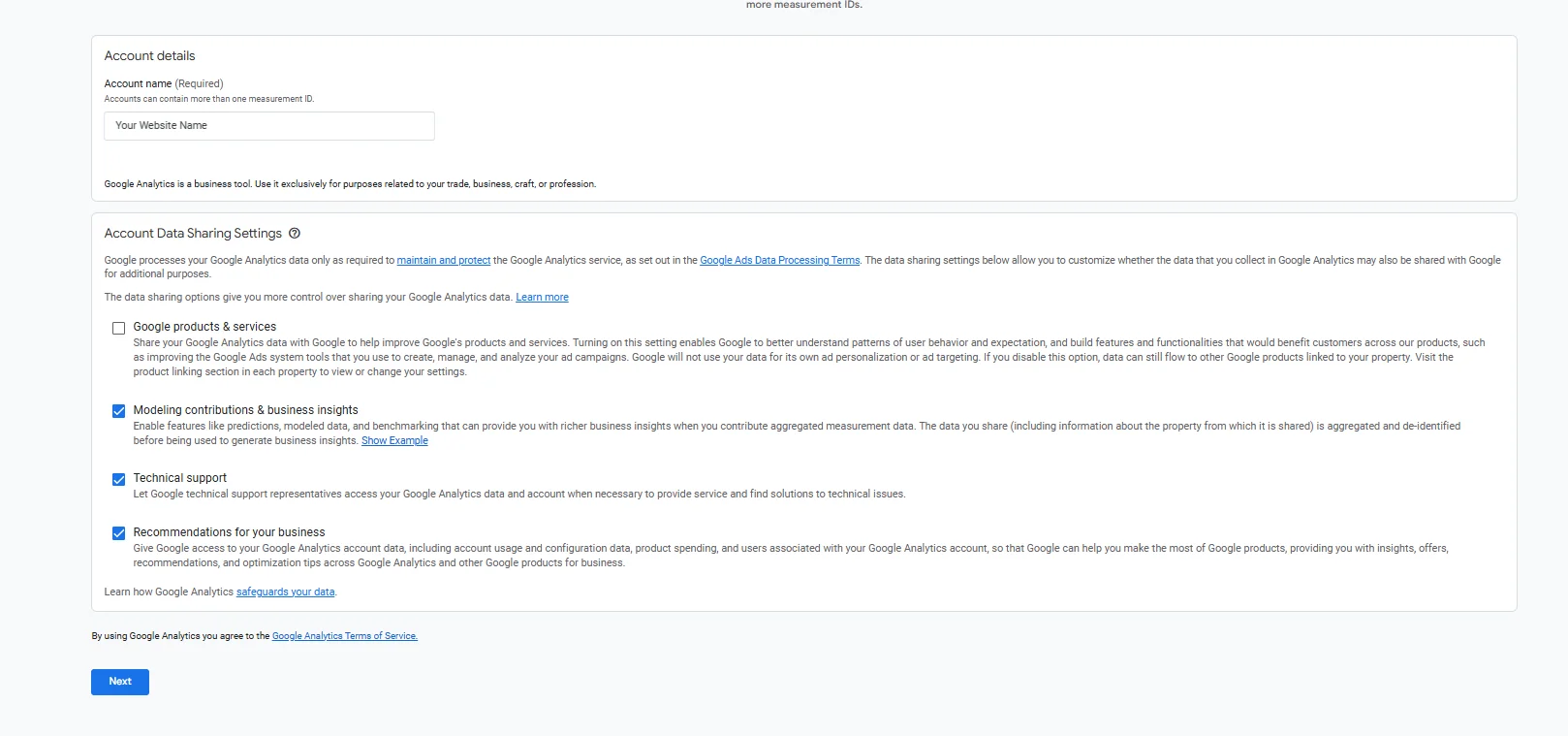
After clicking Start Measuring, you’ll need to provide some information.
First, fill in your Account name and Account Data Sharing Settings.
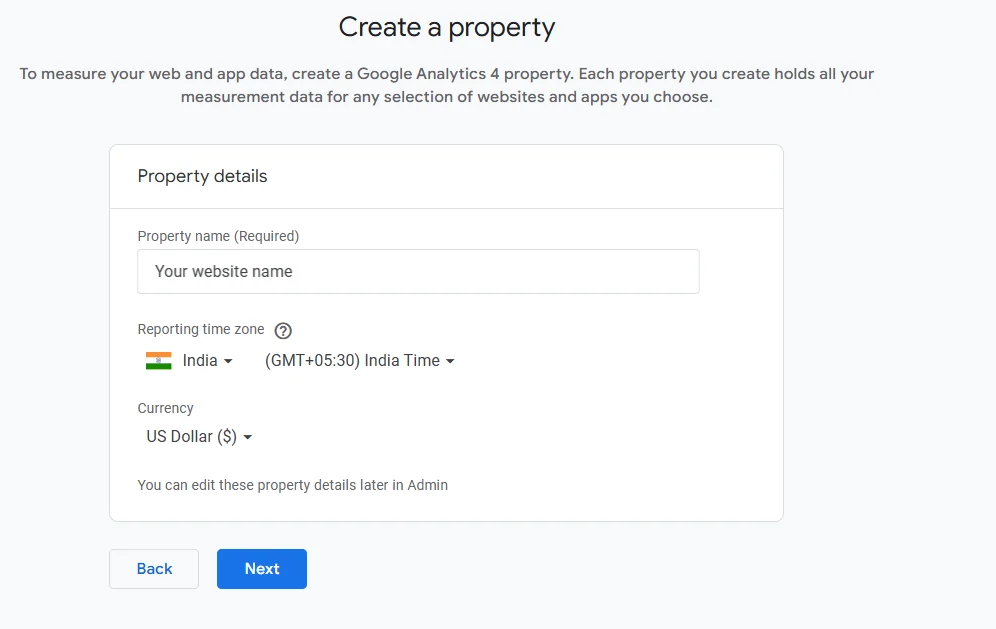
You’ll then need to create a property. This represents a website within your Analytics account.
Enter a property name, select your reporting time zone and currency, then click Next.
Next, answer the remaining questions about your business:
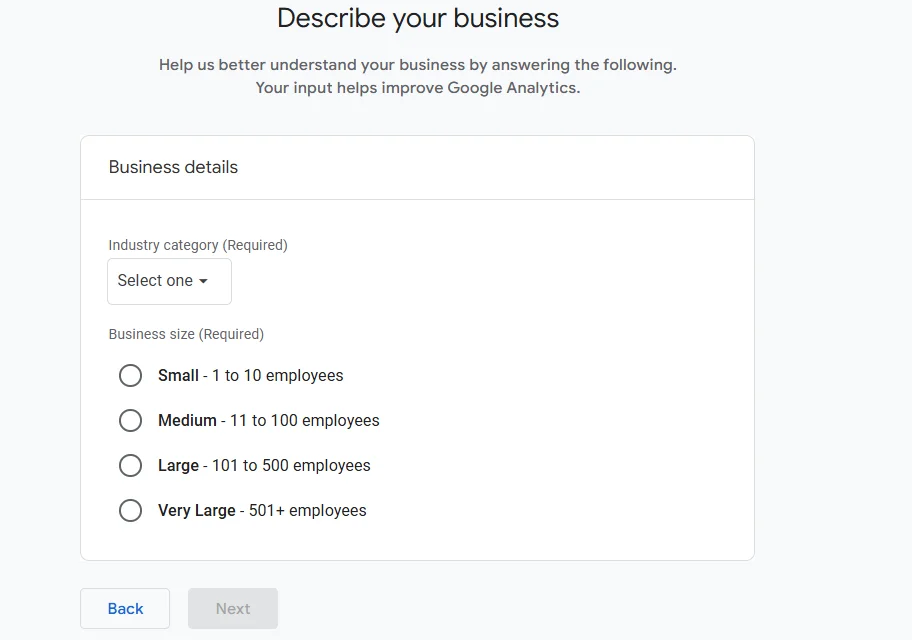
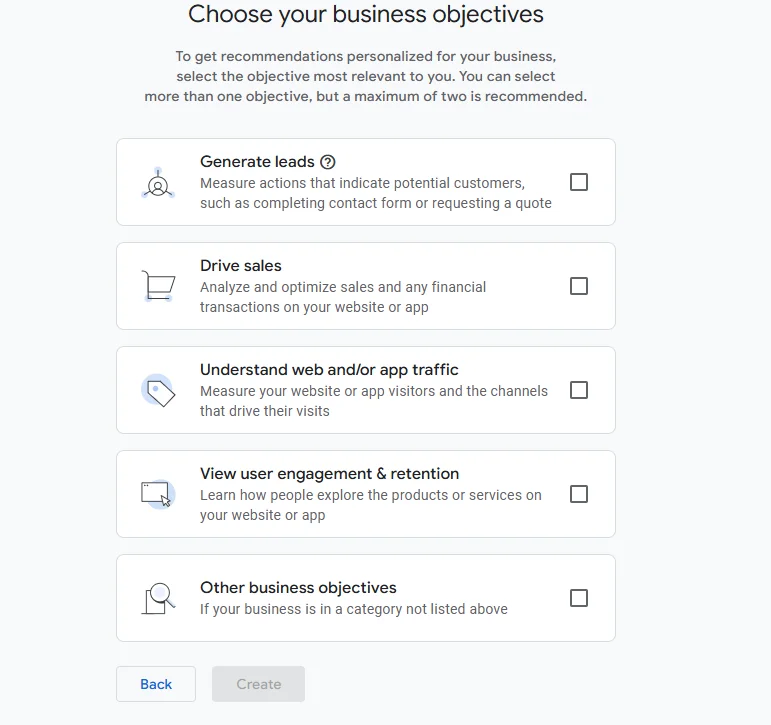
When you’re done, click Create.
Step 3) Create a data stream
After doing this, you’ll be prompted to choose a platform. Select Web.
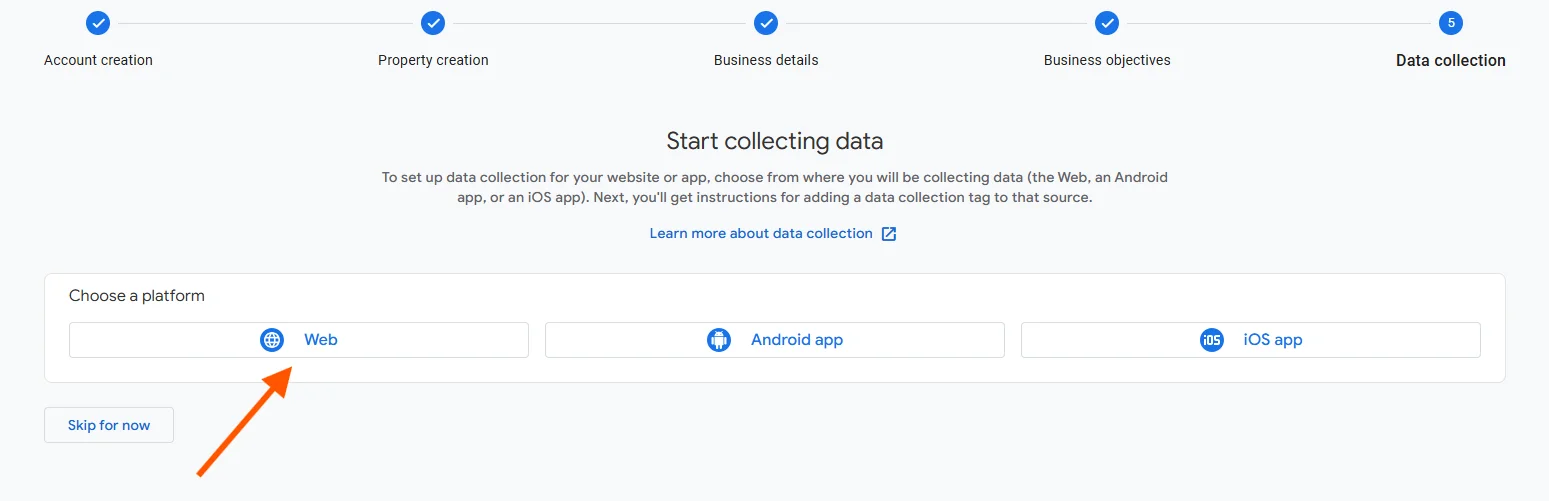
Enter your website’s URL and give the stream a name. Then, click Create and Continue.
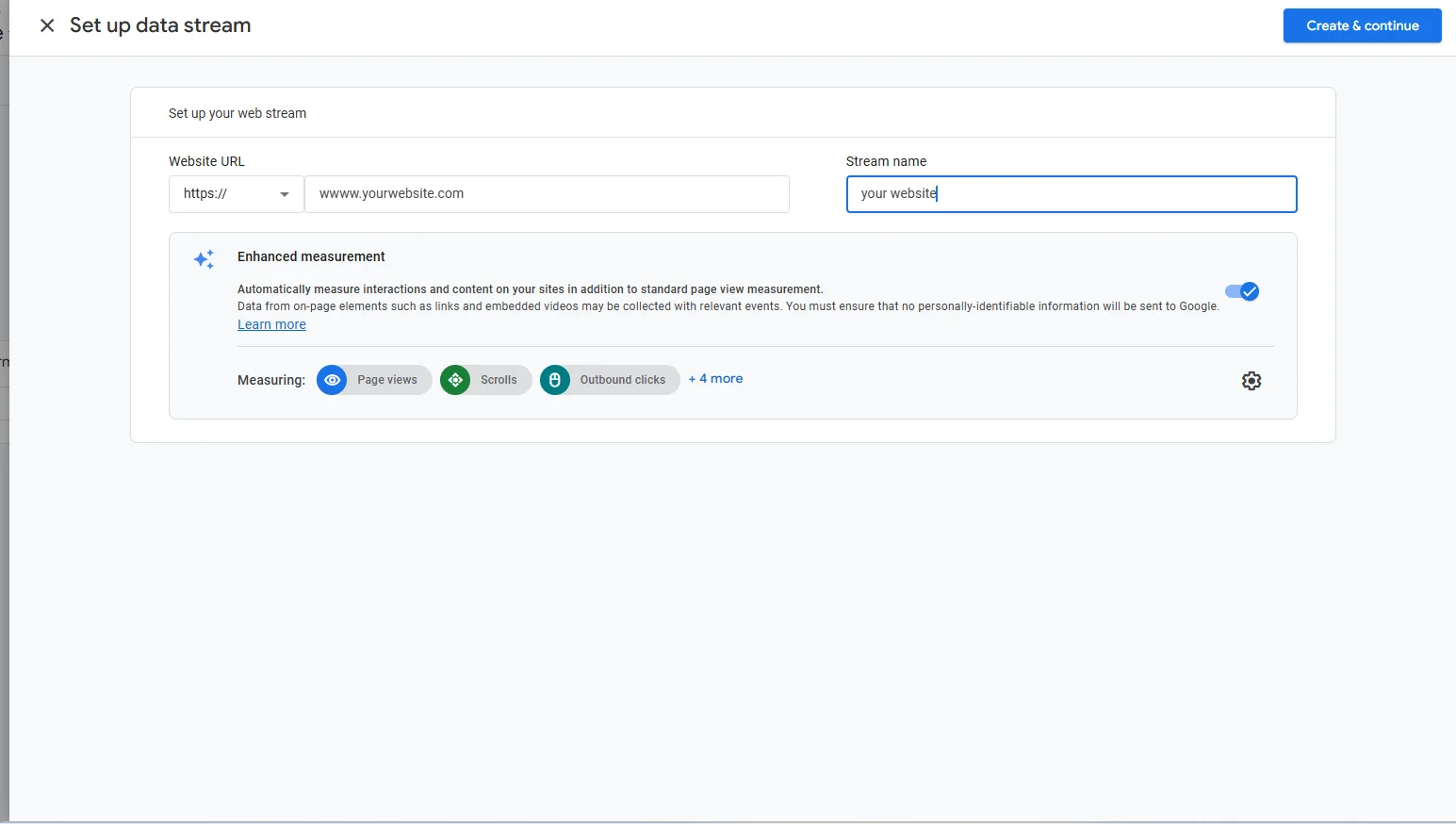
Google will generate a Measurement ID that looks something like G-XXXXXXXXXX. Copy this, you’ll need it in the next step.

Step 4) Add the tracking code to your website
How you install the tracking code depends on your platform:
- WordPress – Install the free Site Kit by Google plugin. It connects both GA4 and Search Console with minimal setup and no code editing required. Alternatively, you can use the GA Google Analytics plugin and paste your Measurement ID.
- Squarespace – Go to Settings → Integrations → Google Analytics and paste your Measurement ID.
- Wix – Go to Marketing & SEO → Marketing Integrations → Google Analytics and paste your ID.
- Shopify – Go to Online Store → Preferences → Google Analytics and paste the Measurement ID into the field provided.
- Custom HTML website – In your GA4 data stream settings, click View tag instructions and copy the Global Site Tag (gtag.js) script. Paste it into the <head> section of every page on your site.
Step 5) Confirm the connection is working
Go back to Google Analytics and open the Realtime report (found in the left-hand menu).
Open your website in a separate browser tab and navigate around.
Within a minute or two, you should see yourself appear as an active user in the Realtime report. If you do, your tracking is working correctly.
Mistakes to Avoid When Linking to Google Search Console or Google Analytics
The process of linking your website to Google Search Console or Google Analytics can be a bit challenging, especially if you are a beginner.
Here are some common pitfalls and how to avoid them:
a) Using different Google accounts for GSC and GA4 – Always use the same Google account for both tools. Mixing accounts creates unnecessary confusion and makes it harder to link them.
b) Verifying the wrong URL in Search Console – If you’re using the URL prefix method in GSC, the URL you verify must match what visitors see in their browser.
This includes whether it starts with www or not, and whether it uses http or https.
Verifying http://yoursite.com when your site runs on https://yoursite.com means you won’t see the right data.
c) Installing duplicate tracking codes – If you use a plugin to add your GA4 code and also manually add the script to your theme, you’ll count every visitor twice. Pick one method and stick to it.
d) Adding the tracking code to only one page – Your GA4 script must appear on every page of your site. If you’re adding it manually, don’t forget inner pages, blog posts, and product pages.
e) Skipping the sitemap submission – Verifying Search Console is only the first step. Without a sitemap, Google has to discover your pages on its own, which takes considerably longer.
f) Not checking the Realtime report after setup – Don’t assume Analytics is working, confirm it. The Realtime report tells you immediately whether data is flowing.
g) Blocking Googlebot in your robots.txt file – If your robots.txt file tells Google not to crawl your site (which can happen on staging sites that were made live), your pages won’t be indexed.
h) Forgetting to link GA4 and Search Console – Once both tools are set up, you should link them so you can view Search Console data inside Analytics.
To do this, go to GA4 → Admin → Property Settings → Search Console Links and connect your verified GSC property.
i) Ignoring Search Console alerts – GSC sends email notifications when it detects indexing issues, manual actions, or security problems. Make sure notifications are turned on and that you check them promptly.
Why The Hosting Provider You Choose Matters
The host you choose directly affects how smoothly tools like Analytics and Search Console integrate with your setup.
Here’s how:
a) DNS access for Search Console verification – If you need to verify your Search Console property using a DNS TXT record, you’ll do it through your hosting provider’s control panel or domain registrar. Hosts with clear, user-friendly dashboards (like cPanel) make this easy.
b) One-click WordPress installation – Many hosting providers offer WordPress pre-installed or available with a single click. This means you can immediately use plugins like Site Kit by Google to connect both GA4 and Search Console with no code editing.
c) Free SSL certificates (HTTPS) – Both Google Analytics and Search Console perform best on secure, HTTPS websites. Google also gives a slight ranking preference to HTTPS sites.
Reputable hosting providers include free SSL certificates, ensuring your site is secure and that your verified URLs are consistent.
d) File manager and FTP access – If you need to upload an HTML verification file or manually add your GA4 tracking script, your hosting provider’s file manager or FTP access is where you’ll do it.
e) Speed and Core Web Vitals – The performance scores Google measures in Search Console (like loading speed) are directly influenced by your hosting environment.
A host with fast servers, built-in caching, and CDN (Content Delivery Network) support gives your site a strong foundation for good Core Web Vitals scores.
f) Expert support when things go wrong – A good hosting provider’s support team can help you diagnose and solve any issues you might face.
If you want a hosting provider that checks every box, Truehost is the answer.
We offer everything outlined in this section and much more.
To learn how we can help, visit our homepage or simply contact us.