Web HostingBudget-friendly shared hosting plans
 Domains SearchFrom .com to unique country domains, explore and register extensions worldwide.
 WordPress HostingPower your blog or business with WordPress hosting.
 Email HostingSimple, secure email hosting that helps you stay connected and professional.
 Reseller HostingStart your own hosting business with easy and reliable reseller hosting plans.
 AffiliateJoin our affiliate program and earn commissions every time you bring in new customers.
 cPanel HostingHosting powered by cPanel, the world’s most user-friendly control panel.
 Windows HostingBuilt for Windows applications and websites
 IN Domain PricesDon’t miss out on the best domain deals in India!
 WHOIS LookupFind out who owns a domain name with a quick and easy WHOIS search.
 Domain TransferTransfer your domain to us and enjoy reliable support every step of the way.
 .Com DomainGet the most trusted domain for worldwide credibility
 All TldsSearch and register domain extensions worldwide.
 SSL CertificatesProtect your website with trusted SSL certificates and keep customer data safe.
 VPS HostingPowerful virtual servers. Full root access. Reliable uptime.
 Managed VPS HostingNot a tech expert? Choose our fully managed VPS service.
 Dedicated ServersTake full power and total control of your own physical server.
 AI Website BuilderCreate stunning websites instantly with our easy AI builder.
 Online ShopBuild your eCommerce store easily, no coding, just growth.
 Web Design ServicesGet a website built for your brand and designed for your goals.
 Contact UsReach out to us for support or questions.
 SupportGet answers and how-to guides for all our services.
 BlogRead our latest blogs on web hosting, online business, digital marketing, and other helpful topics.
Let’s be honest, you probably don’t think about backups that much.
That is, until something goes wrong.
A hacked site. A broken update. A file deleted by mistake. And suddenly, everything you’ve built feels like it’s gone.
But if your website is hosted on a server with cPanel, creating and restoring backups is easier than you think.
You don’t need to be a developer. You don’t need technical expertise. You just need to understand where to click and what to do.
In this guide, I’ll walk you through everything step by step.
What is a Website Backup?
A website backup is a saved copy of your website’s data.
It’s essentially a snapshot of your site at a specific point in time.
A complete website backup typically includes:
- Website files – your themes, plugins, images, scripts, and all uploaded content
- Databases – all the posts, pages, user data, orders, and settings stored in MySQL
- Email accounts and forwarders – important if you manage emails through your hosting
- DNS and server configurations – the settings that keep your site running correctly
There are two main types of backups:
- A full backup (everything on your account)
- a partial backup (specific files or databases only)
cPanel supports both, giving you flexibility depending on what you need.
Why You Need a Website Backup
Backups aren’t just a nice-to-have feature. They’re essential.
Here’s why:
1) Protection Against Data Loss
Files can be deleted accidentally. Updates can break your site. Servers can fail.
A backup ensures you don’t lose everything.
2) Security and Hacking Recovery
If your website gets hacked, restoring a clean backup is often the fastest way to recover.
3) Safe Testing and Updates
Before installing a plugin or updating your CMS, a backup gives you a safety net.
If something breaks, you can revert instantly.
4) Migration Made Easy
Moving your website to a new host? A backup simplifies the process.
5) Peace of Mind
You can make changes confidently, knowing you have a fallback.
How To Back Up Your Website Using cPanel
cPanel makes creating backups easy.
You can create a full backup or a partial backup, depending on your needs.
cPanel also offers two tools for doing the above: Backup and Backup Wizard.
The Backup Wizard offers a guided, step-by-step process suited for beginners.
The standard Backup tool displays all options on one screen, offering faster control for experienced users.
I’ll show you how to do full backups and partial backups using both tools.
Option 1) Using the Backup Wizard
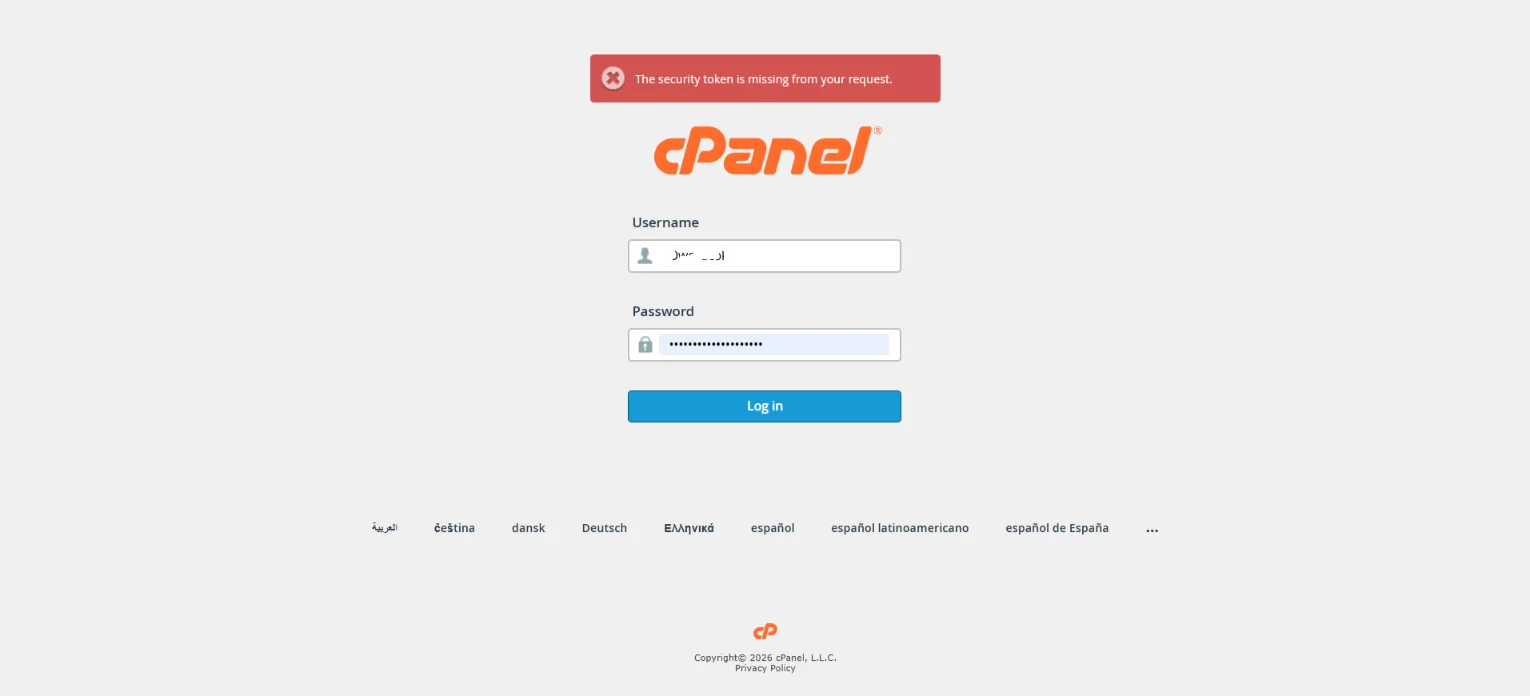
Log in to your cPanel account
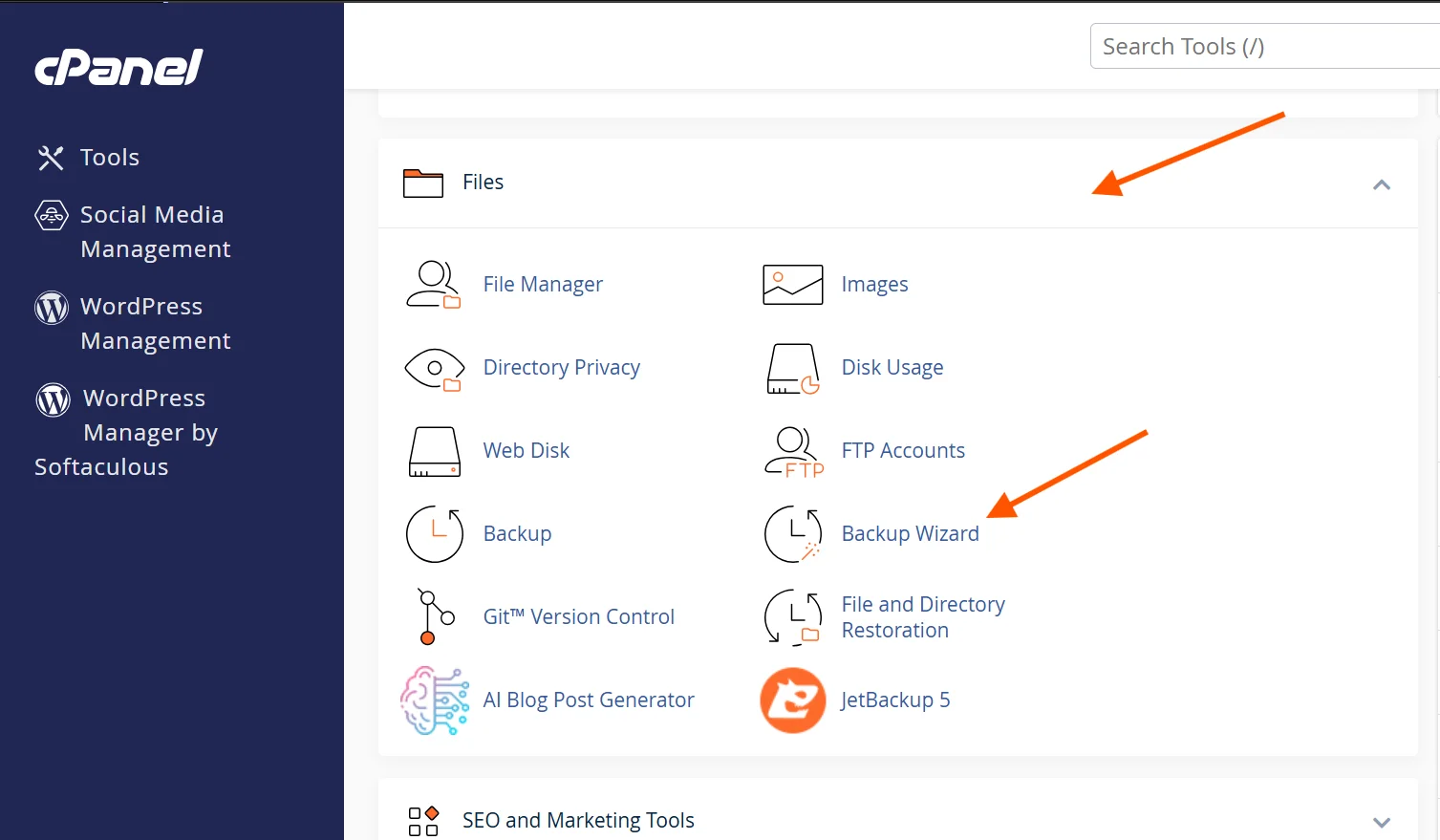
Go to the Files section and click on Backup Wizard
To create a Full Backup:
Click Backup.
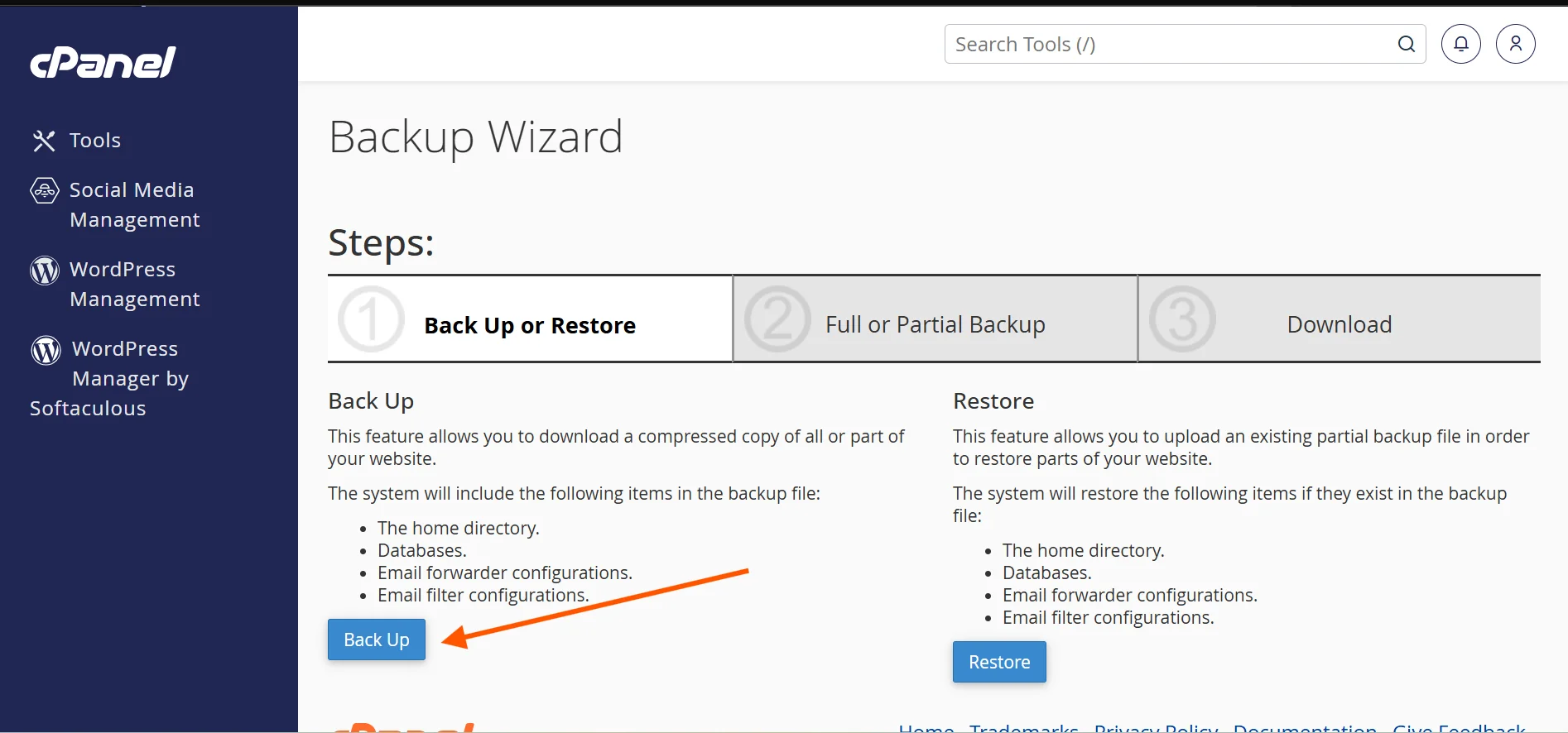
Then, click Full Backup
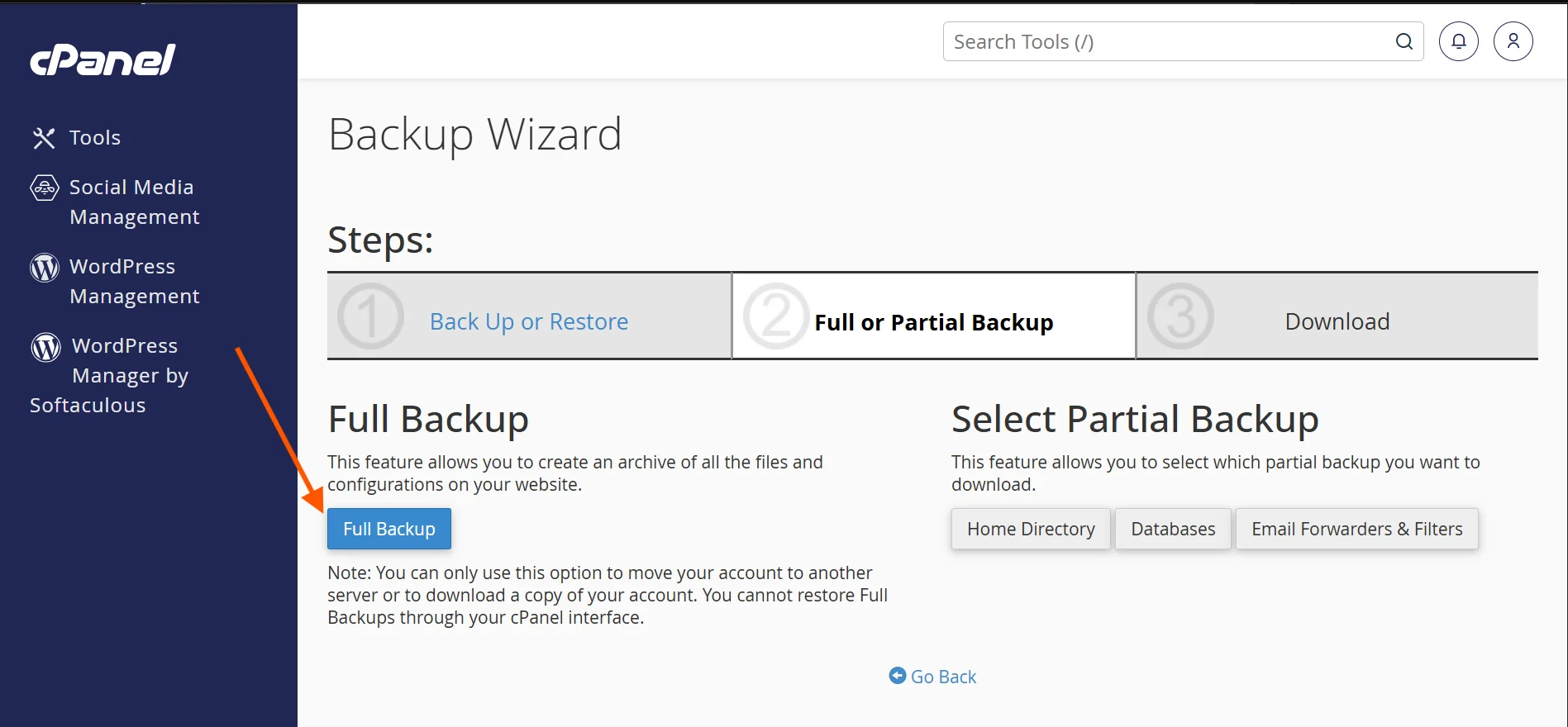
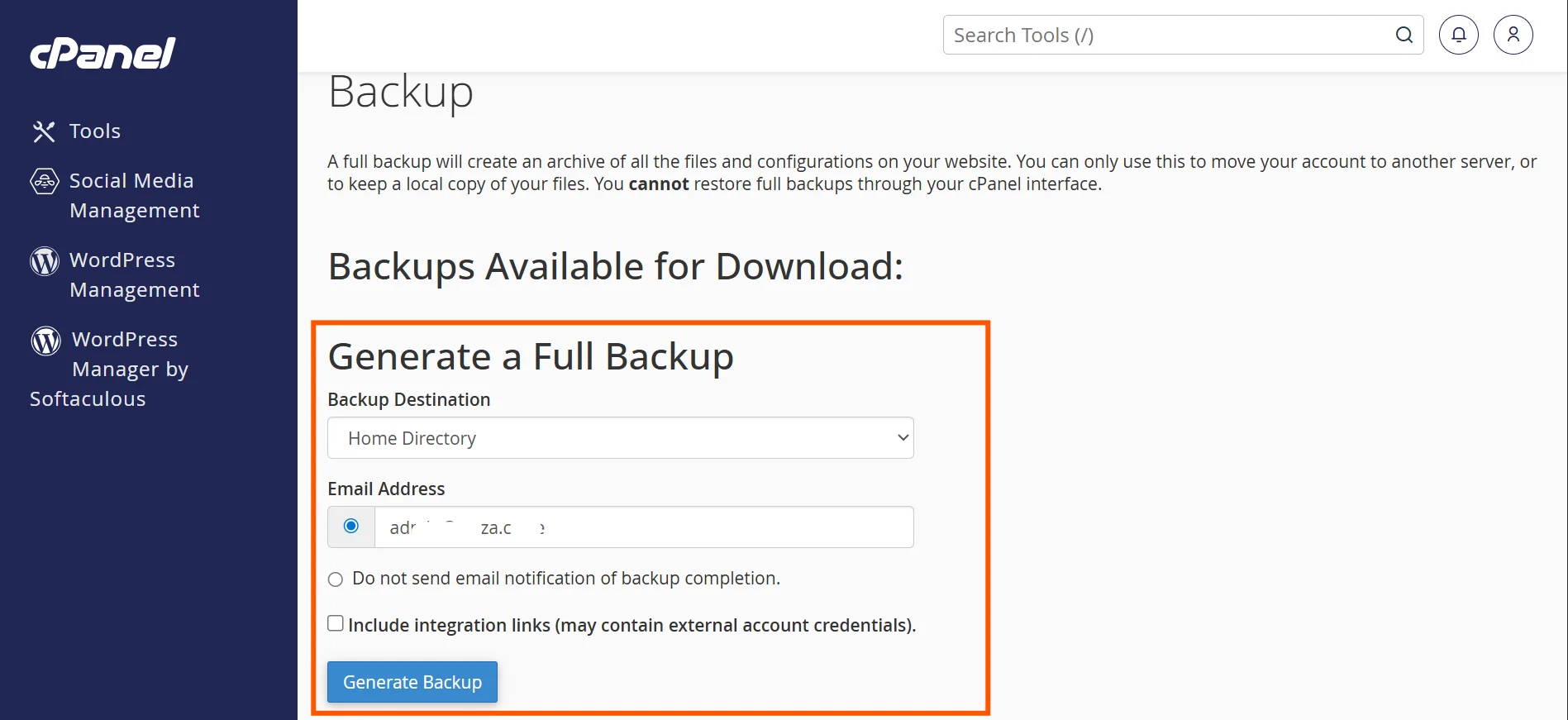
Next, choose the destination.
- Selecting Home Directory saves the backup file on the server. (This is the recommended setting).
- Selecting Remote FTP Server uses FTP to store the backup file on a remote server.
- Selecting Remote FTP Server (passive mode transfer) uses passive FTP to store the backup file on a remote server.
- Selecting Secure Copy uses the Secure Copy Protocol (SCP) to store the backup file on a remote server.
You can also enter your email address to get notified when the backup is done.
Selecting ‘Include Integration Links’ will bundle specific shortcuts and external account data into your backup file.
When you’re done, click Generate Backup. The system will start creating your backup in the background.
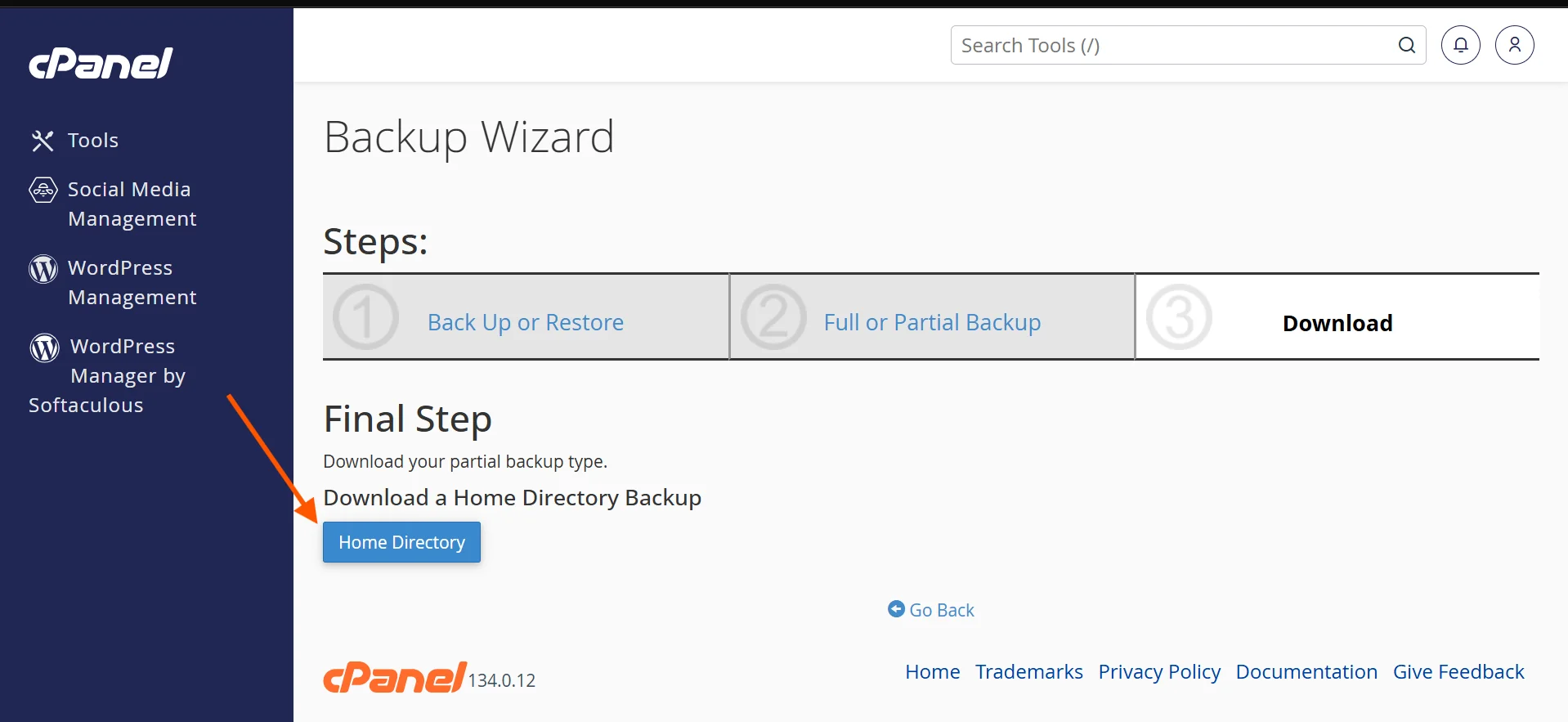
To create a Partial Backup:
Go to the Backup Wizard and click Back Up.
You’ll then see an option to select Partial Backup (on the right).
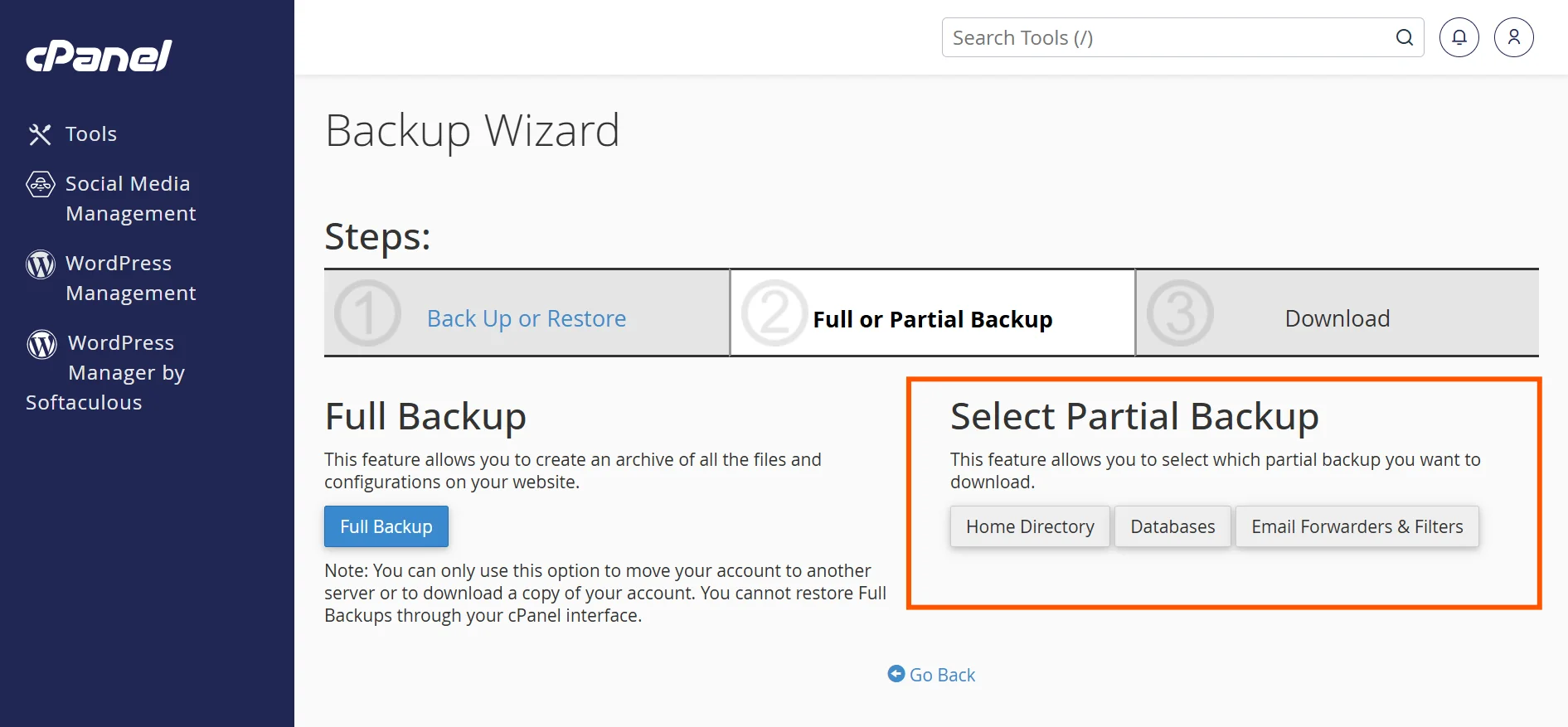
Click on what you want to back up:
- Home Directory (files)
- MySQL Databases
- Email Forwarders & Filters
Then, download the backup file.
Option 2: Using the Backup Tool
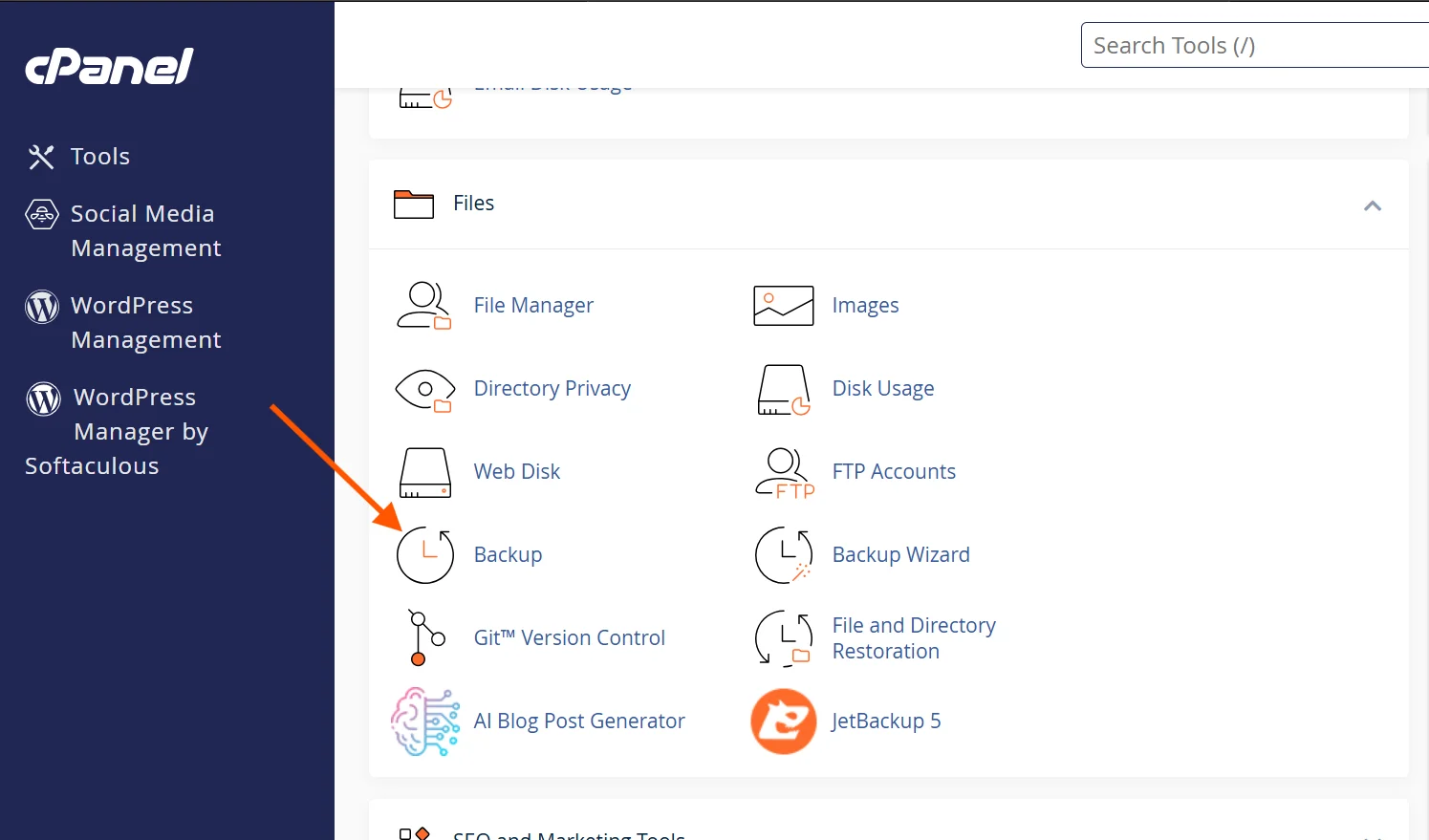
Steps:
1) Log in to cPanel
2) Go to the Files section
3) Click on Backup
Here, you’ll see two main sections:
a) Full Website Backup
Click Download a Full Account Backup
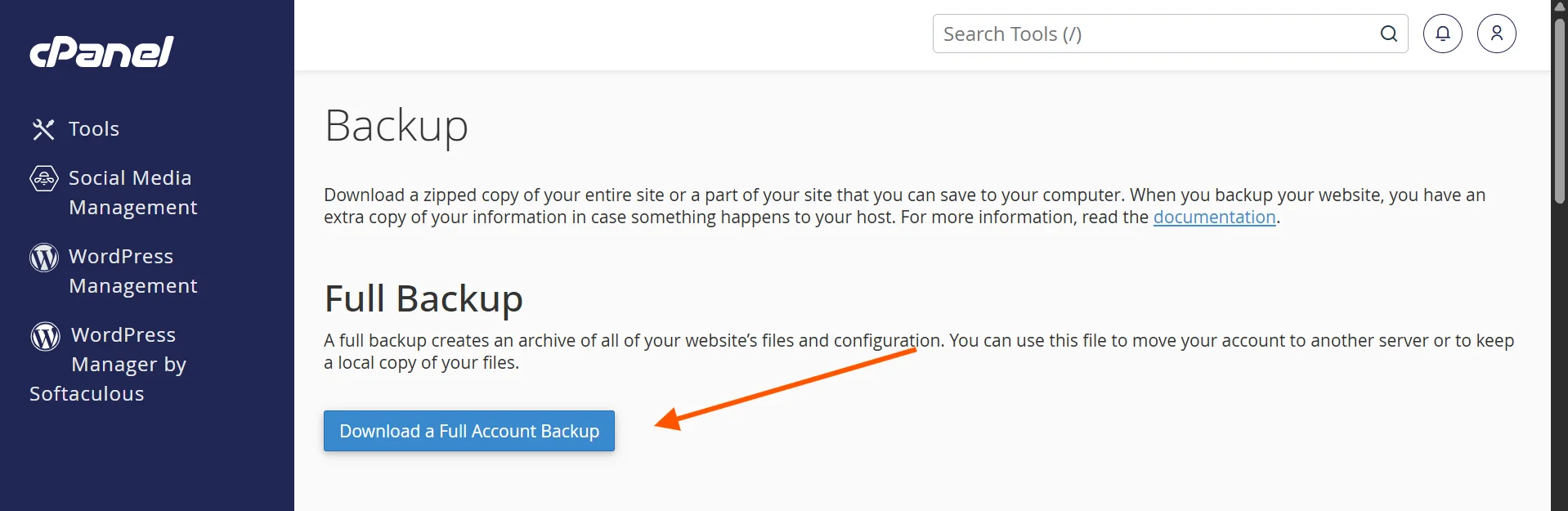
Then, choose backup destination.
Enter your email address (optional)
And click Generate Backup
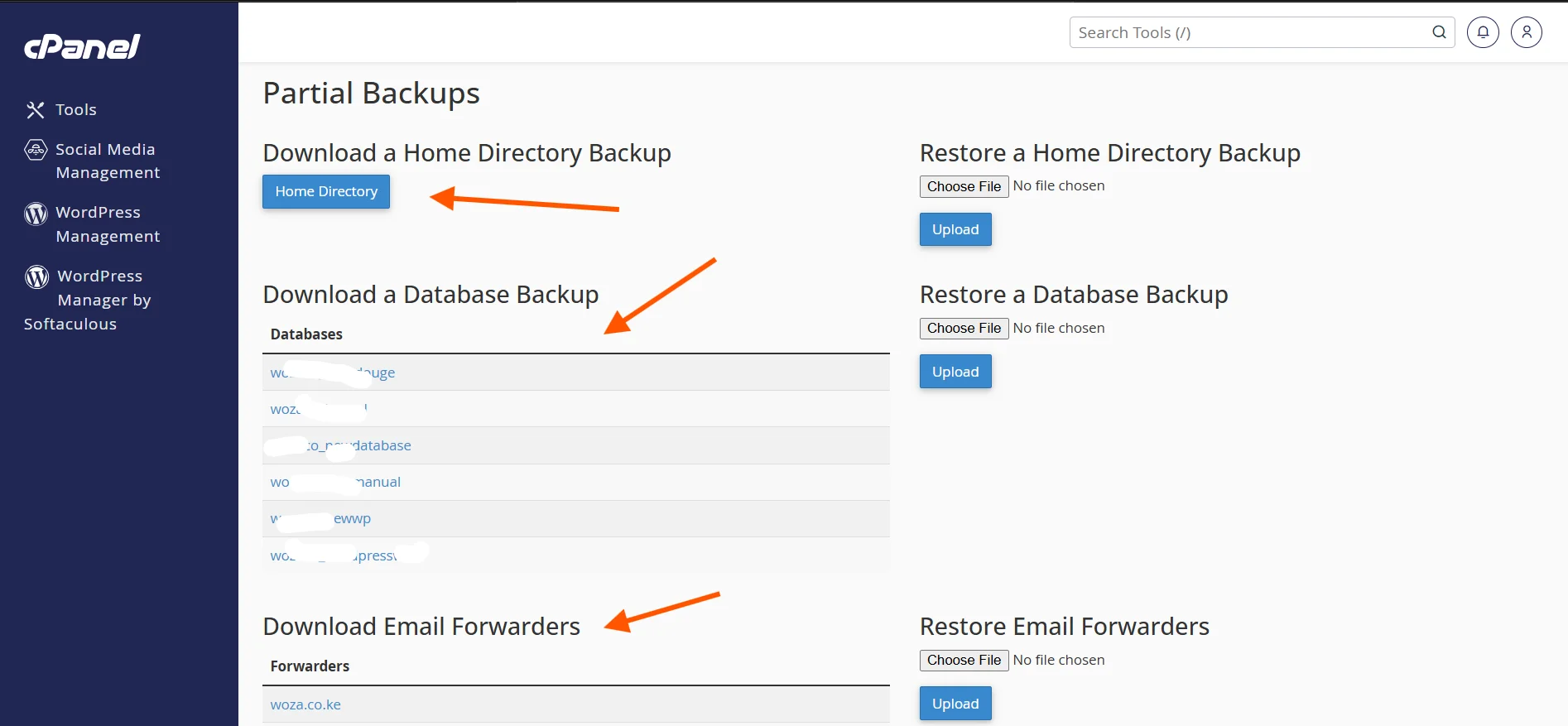
b) Partial Backups
From the same page, you can directly download:
- Home Directory (all website files)
- MySQL Databases
- Email Forwarders and Filters
Just click on any item to download it instantly.
How to Restore Your Website Using cPanel
When something goes wrong, restoring your website from a cPanel backup is just as simple as creating one.
Here’s how to do it.
Restoring a Full Backup
Full backups usually require assistance from your hosting provider. Many hosts don’t allow direct restoration from cPanel for full backups.
What to do:
- Upload your backup file to your server.
- Contact your hosting provider’s support team and request that they restore the full backup for you.
- Once restored, verify your website is working correctly by visiting it in a browser.
Restoring a Partial Backup (Files, Databases, or Email)
For partial backups, you can restore directly within cPanel yourself.
Here’s how:
Log in to cPanel and go to the Backup Wizard or Backup tool.
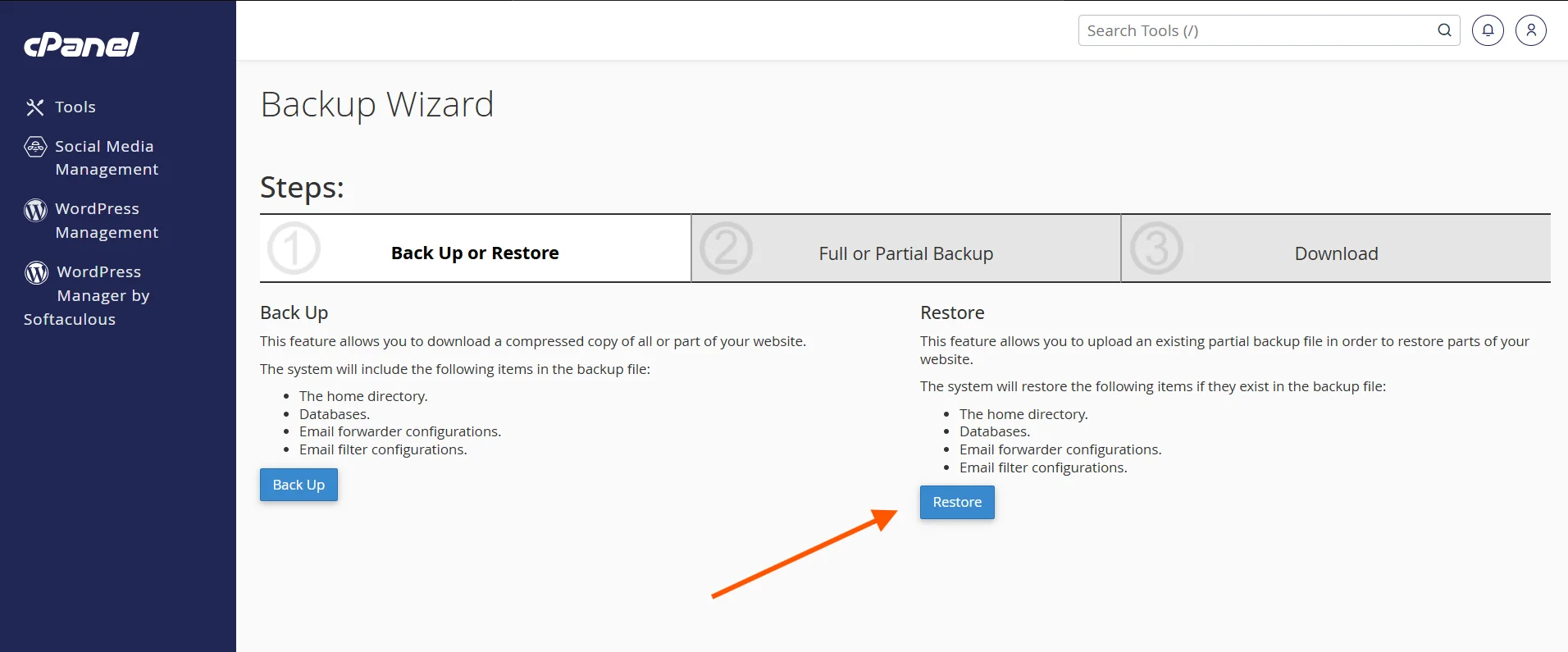
1) In the Backup Wizard, click Restore.
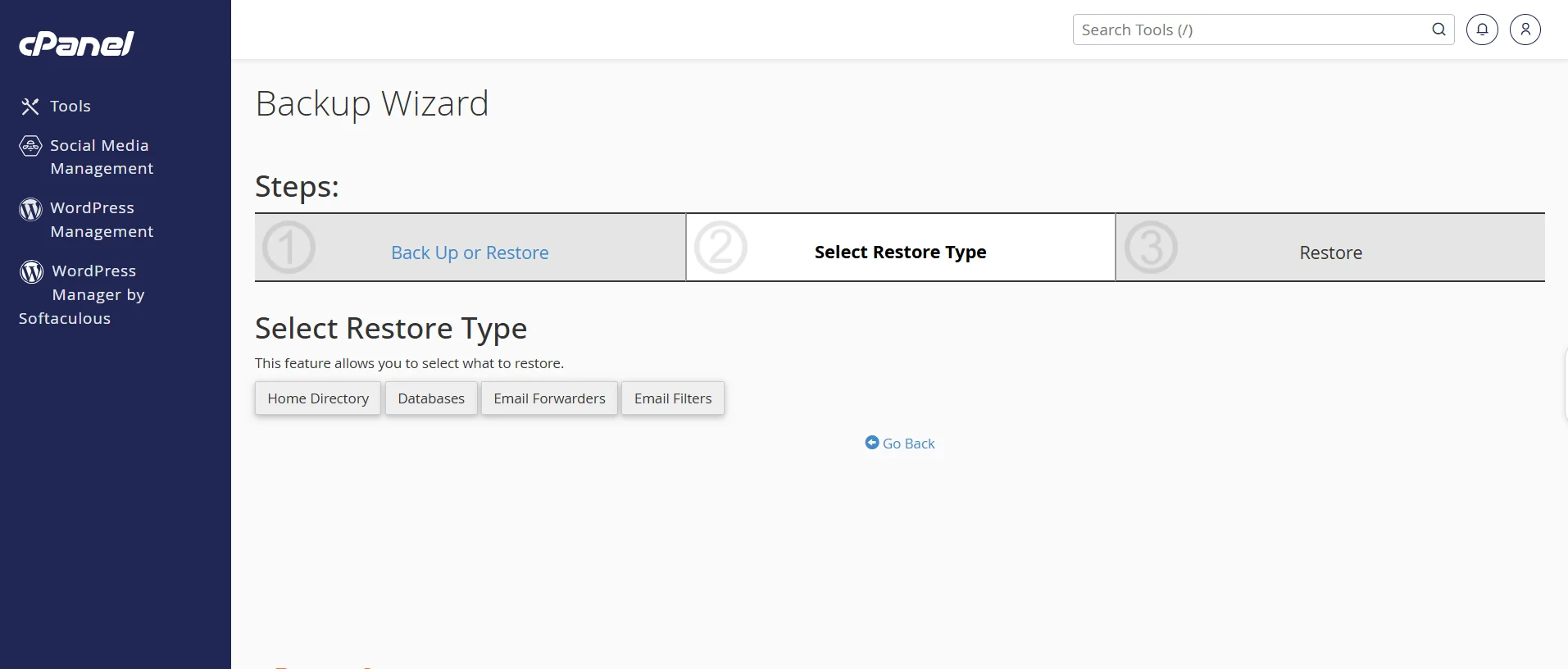
Next, choose the Restore Type
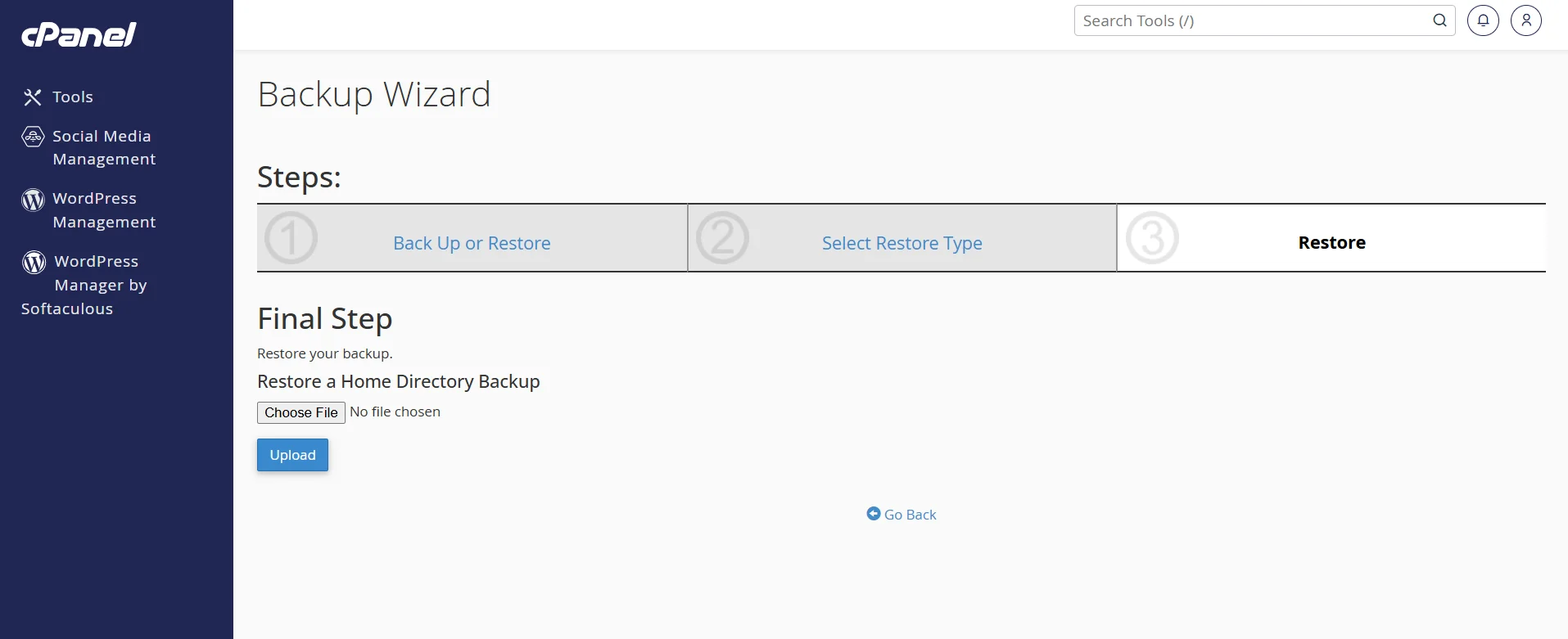
After selecting the restore type, choose the file. Then click upload.
2) In the Backup tool, the Restore sections are next to the Backup sections.
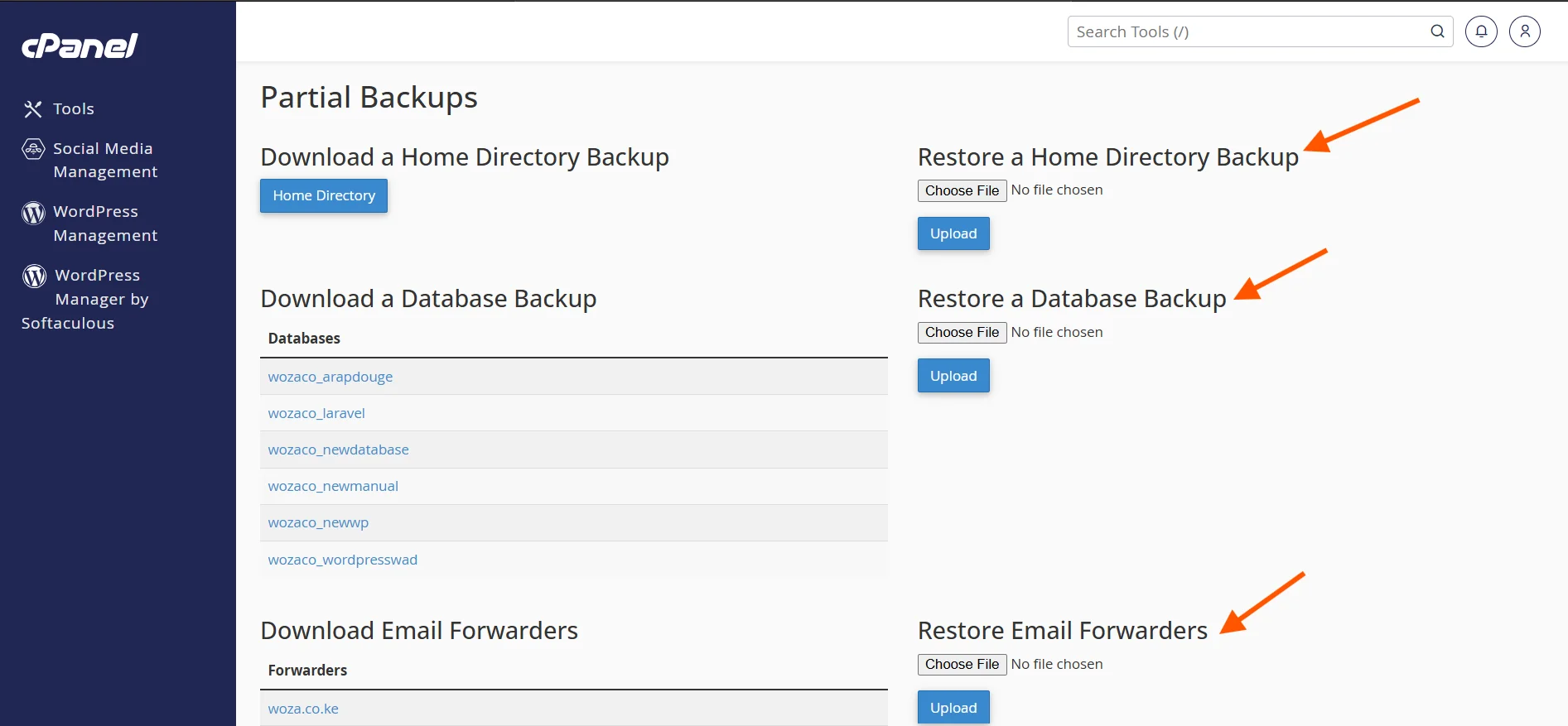
Click Choose File on what you want to restore.
Once added, click Upload to begin the restoration process.
When the upload is complete, cPanel will restore the data.
Check your website to confirm everything is back in order.
Mistakes to Avoid When Creating a Website Backup
Even with simple tools, mistakes happen.
Here are some common mistakes to avoid when you’re dealing with website backups:
a) Only keeping one backup
If your only backup becomes corrupted or is outdated, you’re in trouble.
For this reason, keep multiple versions of your backups.
It’s also important to have a new backup before making any major changes to your website.
b) Storing the backup only on the server
If your server fails or gets hacked, your backup goes down with it.
Always download a copy to an external location.
c) Never testing your backup
A backup you’ve never tested might not actually work when you need it.
Occasionally, do a test restore on a staging environment to confirm everything is intact.
To learn how to create a staging site with cPanel, read this article.
d) Forgetting to back up your database
Many beginners back up their files but forget the database.
Your WordPress posts, WooCommerce orders, and other dynamic data live in the database. Don’t skip it.
e) Infrequent backups
Backing up once a month isn’t enough if you post new content weekly or run an active store.
Schedule backups based on how often your site changes.
f) Restoring without verifying the file
Always check that your backup file is complete and uncorrupted before restoring.
An incomplete restore can cause more problems than the original issue.
Why the Hosting You Choose Matters
Hosting providers handle website backups differently.
A reliable hosting provider doesn’t just give you cPanel. It enhances your backup experience with:
- Automated backups so you don’t have to remember
- Easy restore options with minimal downtime
- Secure storage to protect your data
- Fast servers to ensure quick backup and recovery
At Truehost, we fully understand this.
When you host with us, you get:
- cPanel for easy backup management.
- Regular automated backups – This means you’re not just relying on manual backups; you have a safety net built into your hosting environment.
- Scalable hosting plans to match your website growth – We have tiered plans for Shared, VPS, Cloud, WordPress, and Dedicated Server hosting.
- 24/7/365 support to help with backup and restoration.
- 99.97% uptime guarantee.
- Free SSL certificates and high-level security add-ons.
This is just a glimpse of what we offer at Truehost. To get more information, visit our homepage or contact us.