Web HostingBudget-friendly shared hosting plans
 Domains SearchFrom .com to unique country domains, explore and register extensions worldwide.
 WordPress HostingPower your blog or business with WordPress hosting.
 Email HostingSimple, secure email hosting that helps you stay connected and professional.
 Reseller HostingStart your own hosting business with easy and reliable reseller hosting plans.
 AffiliateJoin our affiliate program and earn commissions every time you bring in new customers.
 cPanel HostingHosting powered by cPanel, the world’s most user-friendly control panel.
 Windows HostingBuilt for Windows applications and websites
 IN Domain PricesDon’t miss out on the best domain deals in India!
 WHOIS LookupFind out who owns a domain name with a quick and easy WHOIS search.
 Domain TransferTransfer your domain to us and enjoy reliable support every step of the way.
 .Com DomainGet the most trusted domain for worldwide credibility
 All TldsSearch and register domain extensions worldwide.
 SSL CertificatesProtect your website with trusted SSL certificates and keep customer data safe.
 VPS HostingPowerful virtual servers. Full root access. Reliable uptime.
 Managed VPS HostingNot a tech expert? Choose our fully managed VPS service.
 Dedicated ServersTake full power and total control of your own physical server.
 AI Website BuilderCreate stunning websites instantly with our easy AI builder.
 Online ShopBuild your eCommerce store easily, no coding, just growth.
 Web Design ServicesGet a website built for your brand and designed for your goals.
 Contact UsReach out to us for support or questions.
 SupportGet answers and how-to guides for all our services.
 BlogRead our latest blogs on web hosting, online business, digital marketing, and other helpful topics.
You’ve got your SSL certificate files sitting in a folder somewhere.
Your server is running. Your site is live. But it’s still loading over HTTP.
And you know what that means! Browser warnings, security risks, and users who won’t trust your site enough to stay.
What you need to do is install the SSL certificate file on your server, and everything works securely over HTTPS.
But the process is not plug-and-play like managed hosting solutions. One wrong file path, one misconfigured directive, and your site either breaks or stays unprotected.
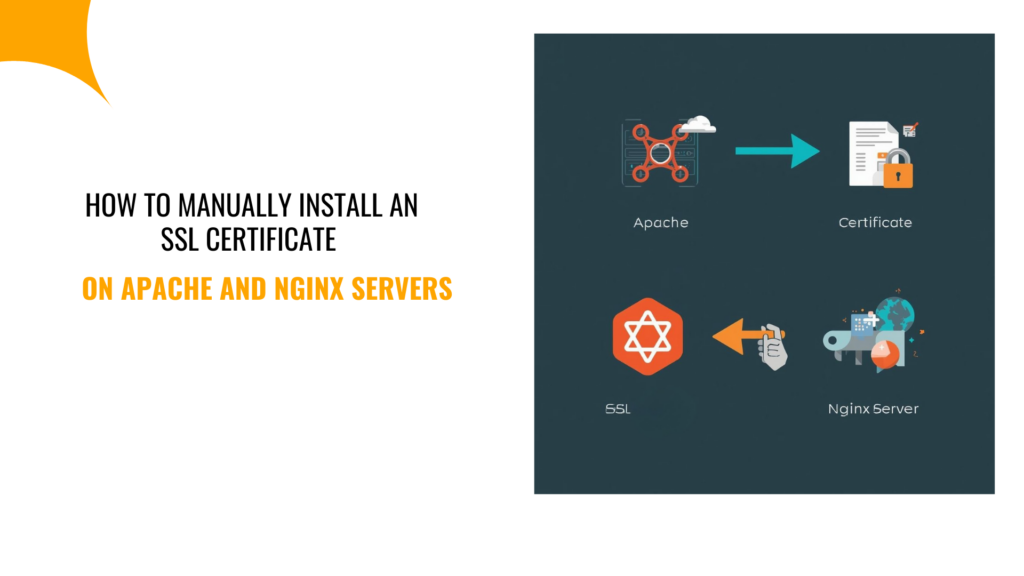
That’s why in this guide, I’ll walk you through the exact steps to install an SSL certificate on Apache and Nginx servers.
Keep reading to find out!
What Is an SSL Certificate and Why Is Manual Installation Needed
An SSL certificate encrypts data between your server and your visitors’ browsers.
Without it, sensitive information like passwords, payment details, and form submissions travels in plain text. Anyone with the right tools can intercept it.
So, SSL does three things. It encrypts data, authenticates your site’s identity, and builds trust with visitors. Google also ranks HTTPS sites higher than HTTP ones.
Now, why manual installation?
If you’re using shared hosting, your provider probably handles SSL automatically. But if you’re on a VPS, cloud server, or dedicated setup, you’re in charge.
Manual installation is also needed when you’re using a custom web stack, running multiple domains, or working with wildcard or multi-domain certificates that require precise configuration.
In India, where VPS hosting is affordable and widely used, knowing how to manually install SSL is a must-have skill.
What You Need Before Installing an SSL Certificate
Don’t start the installation without these files and access points ready.
First, your domain must be pointing to your server. Check your DNS records, and if your A record isn’t pointing to the correct IP, SSL won’t bind properly.
You need three key files:
- Your SSL certificate file (usually a .crt or .pem file)
- The CA bundle or intermediate certificate (sometimes combined with the main certificate)
- Your private key (.key file)
These files come from your SSL provider, whether that’s Let’s Encrypt, Sectigo, DigiCert, or any other Certificate Authority.
You also need root or sudo access to your server. If you’re locked out or using a limited user account, you won’t be able to edit config files or restart services.
Finally, make sure Apache or Nginx is already installed and running. If you’re starting from scratch, install your web server first.
Once you have everything, you’re ready to proceed.
How to Install an SSL Certificate on an Apache Server
Apache is the most common web server in India, especially on cPanel-free VPS setups.
Here’s how you install SSL on it.
Step 1: Enable the SSL Module
Apache doesn’t enable SSL by default on many Linux distributions. So, run this command:
sudo a2enmod ssl
This activates the SSL module. Without it, Apache won’t recognize SSL directives.
Step 2: Upload Your Certificate Files
Create a directory for your SSL files if one doesn’t exist:
sudo mkdir -p /etc/ssl/certs
sudo mkdir -p /etc/ssl/private
Then, upload your .crt file to /etc/ssl/certs/ and your .key file to /etc/ssl/private/. Keep the private key secure–don’t expose it publicly.
Step 3: Edit the Apache SSL Configuration File
Open your site’s virtual host file. It’s usually located in /etc/apache2/sites-available/ or /etc/httpd/conf.d/ depending on your distro.
You’ll need to create or edit a file for port 443 (HTTPS).
Step 4: Add the Certificate Paths
Inside the virtual host block, add these lines:
- SSLEngine on
- SSLCertificateFile /etc/ssl/certs/your_certificate.crt
- SSLCertificateKeyFile /etc/ssl/private/your_private.key
- SSLCertificateChainFile /etc/ssl/certs/ca_bundle.crt
Make sure the file paths match where you uploaded your files.
Step 5: Restart Apache
Here run:
sudo systemctl restart apache2
Or on CentOS/RHEL:
sudo systemctl restart httpd
That’s it. Your SSL certificate is now active on Apache.
How to Install an SSL Certificate on Nginx Server
Nginx is leaner and faster than Apache, especially under heavy traffic.
The SSL installation process is simpler, too.
Step 1: Upload Your Certificate Files
Place your .crt and .key files in /etc/ssl/:
- sudo mkdir -p /etc/ssl/certs
- sudo mkdir -p /etc/ssl/private
Then, upload your certificate to /etc/ssl/certs/ and your private key to /etc/ssl/private/.
Step 2: Edit the Nginx Server Block
Open your site’s configuration file, usually located in /etc/nginx/sites-available/ or /etc/nginx/conf.d/.
After that, find the server block for your domain.
Step 3: Add SSL Certificate and Key Paths
Inside the server block listening on port 443, add:
- listen 443 ssl;
- ssl_certificate /etc/ssl/certs/yourdomain.crt;
- ssl_certificate_key /etc/ssl/private/yourdomain.key;
If you have a CA bundle, concatenate it with your main certificate:
cat yourdomain.crt ca_bundle.crt > yourdomain_combined.crt
Then point to the combined file in your config.
Step 4: Reload Nginx
Lastly, test the configuration first using sudo nginx -t.
If it passes, reload Nginx with the command: sudo systemctl reload nginx
That’s it! Your SSL certificate is now live on Nginx.
Common SSL Installation Errors and How to Fix Them
Even with the right steps, things can go wrong. Here’s how to troubleshoot the most common issues.
1) Certificate Chain Errors
If your browser shows “certificate not trusted,” you’re missing the intermediate certificate. Apache and Nginx need the full chain to validate.
So, the solution is to add the CA bundle file using SSLCertificateChainFile (Apache) or to concatenate it with your main certificate (Nginx).
2) Private Key Mismatch
If your certificate and private key don’t match, the server won’t start, or SSL won’t bind.
If that’s the case, check the match with:
- openssl x509 -noout -modulus -in yourdomain.crt | openssl md5
- openssl rsa -noout -modulus -in yourdomain.key | openssl md5
The output should be identical. If not, you’re using the wrong key.
3) Mixed Content Warnings
This happens when your site loads over HTTPS, but images, scripts, or stylesheets are loading over HTTP.
The solution is simple! Update your site’s internal links to use relative URLs or HTTPS. Likewise, use a content security policy to block insecure resources.
4) Port 443 Not Open
If your firewall blocks port 443, SSL won’t work.
To verify, check with sudo ufw status, and if port 443 isn’t allowed, open it with sudo ufw allow 443/tcp.
Apache vs Nginx: Key SSL Configuration Differences
Both Apache and Nginx servers handle SSL well, but they do it differently. Here’s how the two differ:
- Configuration style: Apache uses verbose directives inside <VirtualHost> blocks while Nginx uses compact syntax inside server blocks. Also, while Apache feels more explicit, Nginx feels leaner.
- Performance handling: Nginx handles SSL connections more efficiently under high traffic. However, Apache can match it with MPM event, but Nginx is the default choice for SSL-heavy sites.
- Reload vs restart behavior: Nginx lets you reload configs without dropping connections. On the other hand, Apache often requires a full restart, which can briefly interrupt service.
So, for Indian VPS users running high-traffic sites, Nginx offers better resource efficiency. However, Apache remains dominant in shared hosting and legacy setups.
Conclusion: Ensuring a Secure HTTPS Setup
Manual SSL installation isn’t hard once you know the steps.
But it’s only half the job.
After installation, verify your SSL setup using tools like SSL Labs’ SSL Test. Check for chain issues, weak ciphers, and protocol vulnerabilities.
Also, set up automatic renewal if you’re using Let’s Encrypt. A certificate that expires silently breaks your site without warning.
And if you’re managing multiple sites or lack server experience, managed hosting from reliable providers like Truehost simplifies SSL long-term. We offer you automatic renewals, built-in security, and support when things break.
But if you’re hands-on with your VPS, knowing how to manually install SSL gives you full control, once you buy the SSL certificate.