Web HostingBudget-friendly shared hosting plans
 Domains SearchFrom .com to unique country domains, explore and register extensions worldwide.
 WordPress HostingPower your blog or business with WordPress hosting.
 Email HostingSimple, secure email hosting that helps you stay connected and professional.
 Reseller HostingStart your own hosting business with easy and reliable reseller hosting plans.
 AffiliateJoin our affiliate program and earn commissions every time you bring in new customers.
 cPanel HostingHosting powered by cPanel, the world’s most user-friendly control panel.
 Windows HostingBuilt for Windows applications and websites
 IN Domain PricesDon’t miss out on the best domain deals in India!
 WHOIS LookupFind out who owns a domain name with a quick and easy WHOIS search.
 Domain TransferTransfer your domain to us and enjoy reliable support every step of the way.
 .Com DomainGet the most trusted domain for worldwide credibility
 All TldsSearch and register domain extensions worldwide.
 SSL CertificatesProtect your website with trusted SSL certificates and keep customer data safe.
 VPS HostingPowerful virtual servers. Full root access. Reliable uptime.
 Managed VPS HostingNot a tech expert? Choose our fully managed VPS service.
 Dedicated ServersTake full power and total control of your own physical server.
 AI Website BuilderCreate stunning websites instantly with our easy AI builder.
 Online ShopBuild your eCommerce store easily, no coding, just growth.
 Web Design ServicesGet a website built for your brand and designed for your goals.
 Contact UsReach out to us for support or questions.
 SupportGet answers and how-to guides for all our services.
 BlogRead our latest blogs on web hosting, online business, digital marketing, and other helpful topics.
Running everything under a single website might seem simple.
But as your site grows, it becomes harder to manage. Navigation gets messy. Users get confused. And scaling becomes a headache.
If you’re wondering how to solve this, a great solution would be using subdomains.
In this article, you’ll learn exactly what subdomains are, how to create them in cPanel, why they matter, and mistakes to avoid when setting them up.
What Is a Subdomain?
A subdomain is an extension of your main domain. It creates a separate section of your website that can function independently.
This means each subdomain can have its own content, design, functionality, etc.
Example:
- Main domain: yourwebsite.com
- Subdomains:
- blog.yourwebsite.com
- shop.yourwebsite.com
- support.yourwebsite.com
The part before the first dot (blog, shop, support) is the subdomain.
Since it sits one level below your main domain in the hierarchy, a subdomain is sometimes called a child domain.
Key things to understand about subdomains:
- They are treated as separate entities by search engines like Google
- They can have different content management systems or platforms from your main site
- They use your existing domain, no extra registration fees
- They can point to different folders or even different servers
- You can create multiple subdomains under one domain
How To Set Up Subdomains in cPanel
Here’s how to set up a subdomain in cPanel, step by step:
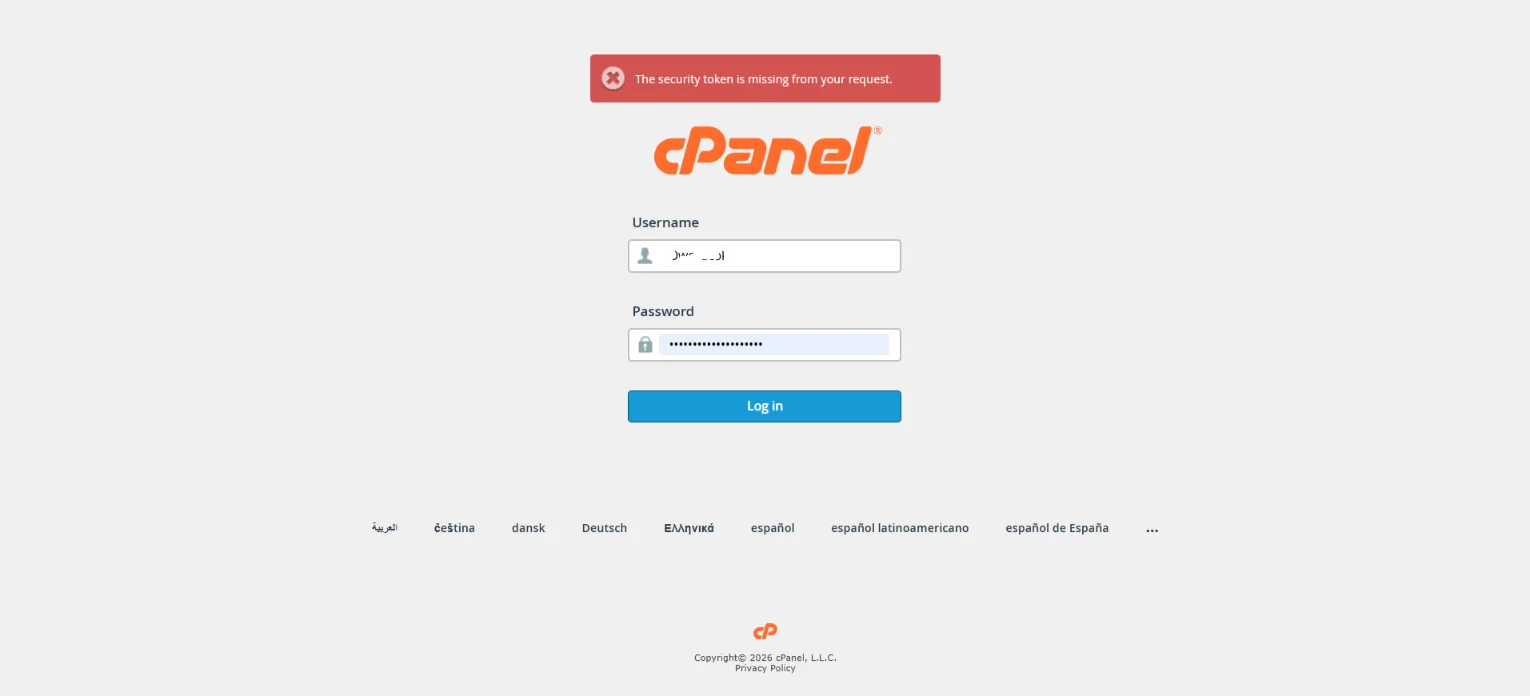
Step 1) Log In to cPanel
Open your browser and log in to your cPanel dashboard.
This is usually yourdomain.com/cpanel or a custom URL your hosting provider gave you when you signed up.
Step 2) Find the Domains Tool
Once inside the dashboard, look for the Domains section.
Then, click the Domains icon under this section.
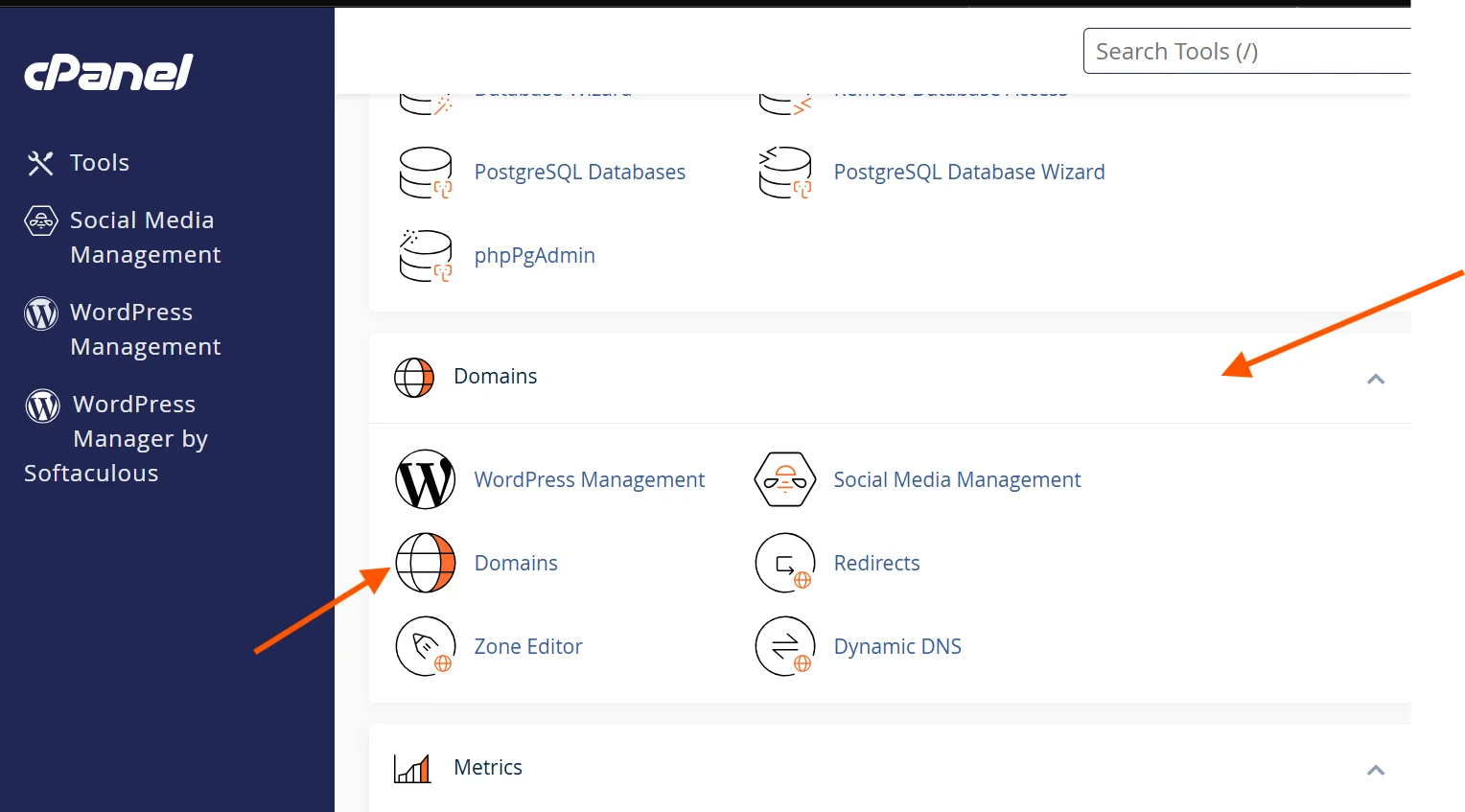
Note: Older versions of cPanel had a dedicated Subdomains tool. Newer versions (11.90 and above) removed it and folded everything into the Domains manager. If you still see a Subdomains icon, you can use that instead.
Step 3) Open the New Domain Form
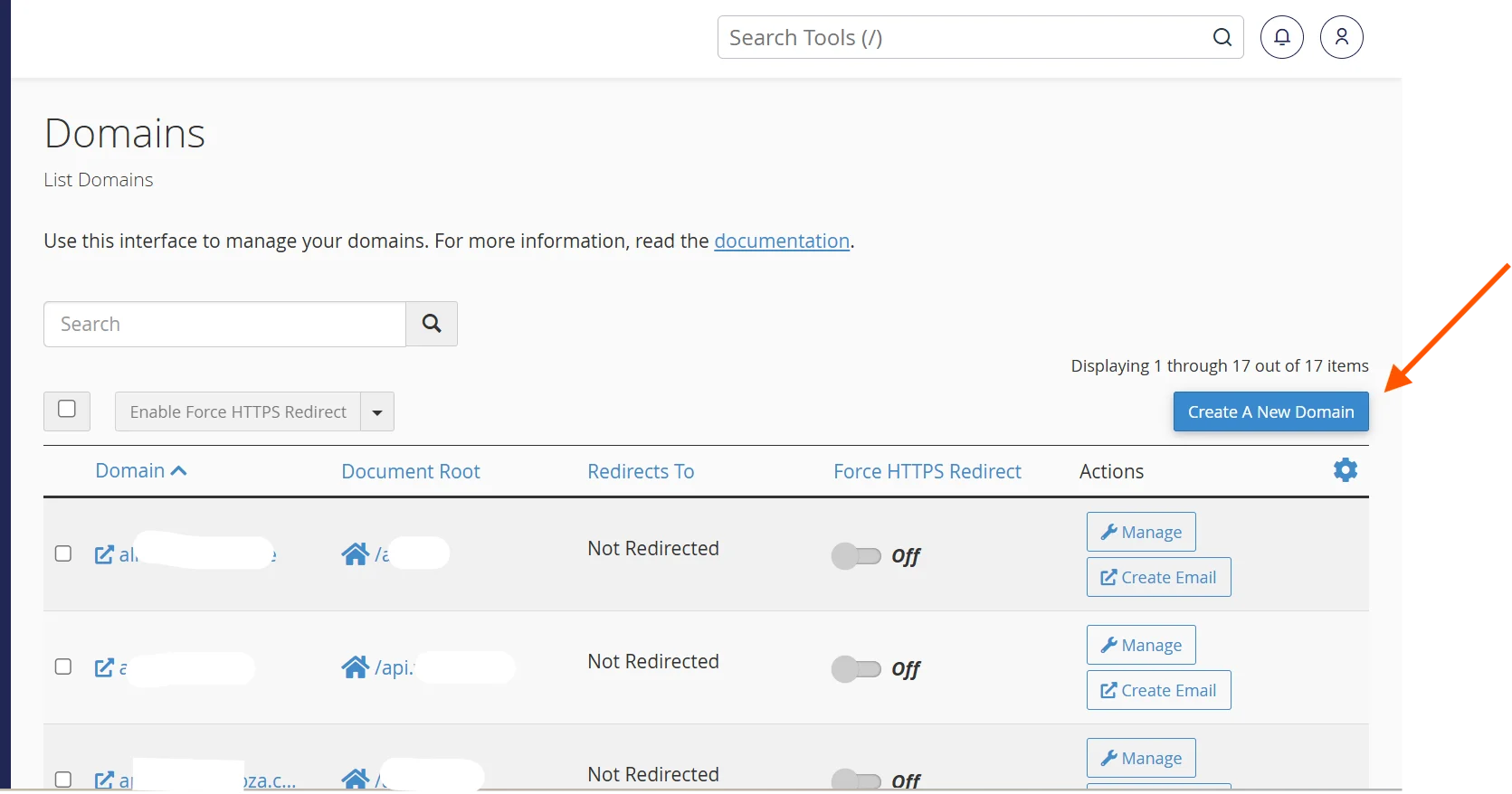
On the Domains page, you’ll see a list of any domains already associated with your account.
At the top right of the page, click the Create A New Domain button.
Step 4) Enter Your Subdomain Details
After clicking Create A New Domain, you have a couple of fields to fill in.
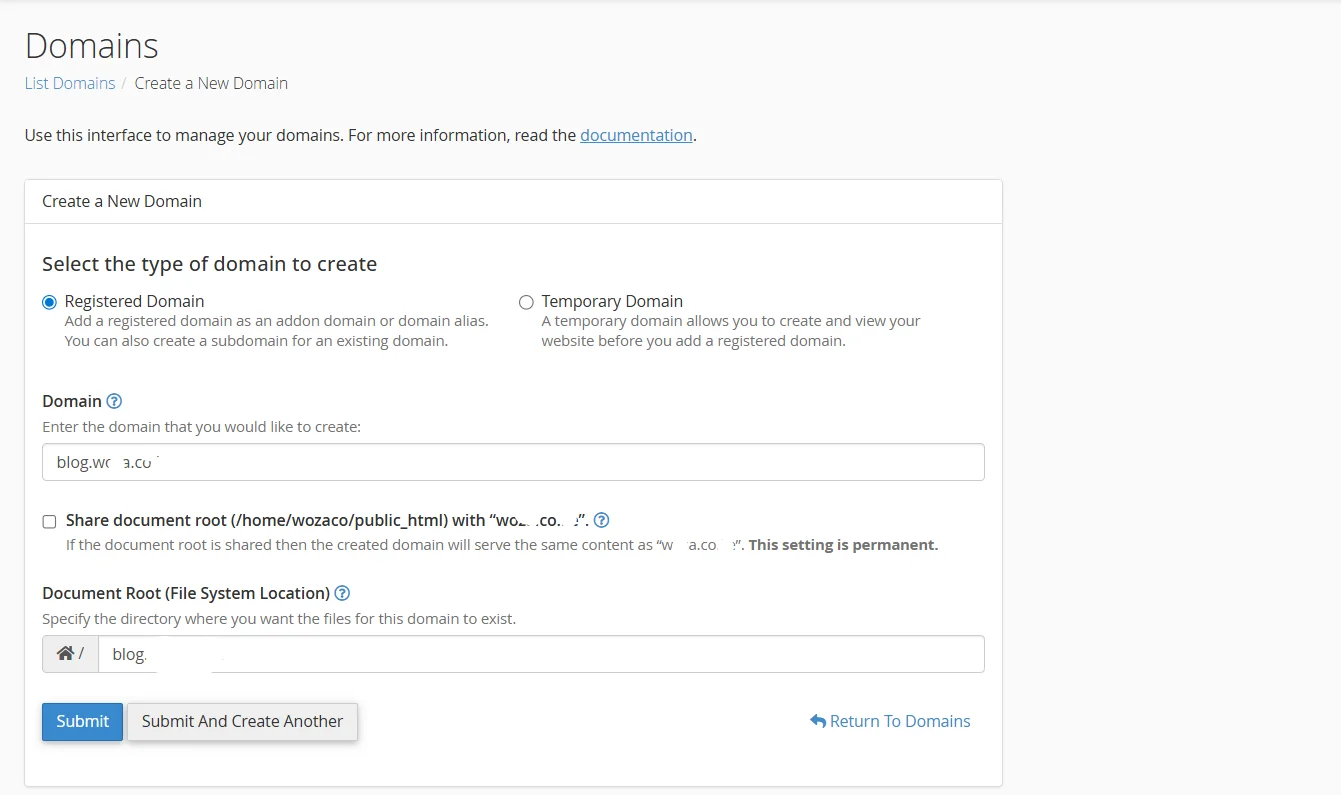
a) Type of domain to create – Select Registered Domain. This is what will help you create a subdomain.
b) Domain field – Type the full subdomain you want to create. You must include your main domain name here.
Example: If your main domain is yoursite.com and you want a blog subdomain, type blog.yoursite.com. Don’t just type “blog” on its own.
c) Document Root field – This will auto-fill based on what you typed. It is the folder on your server where the subdomain’s files will live.
Example: You may see blog.yoursite.com or public_html/blog.yoursite.com depending on your host’s configuration.
Tip:
- If the auto-filled path looks correct, leave it as is.
- If you want the files stored in a specific folder, clear the field and type your preferred path (e.g., public_html/blog).
d) Share Document Root checkbox – You may see an option asking whether the subdomain should share the document root of your main domain.
Leave this unchecked unless you specifically want the subdomain to display the exact same content as your main site. In almost all cases, you want a separate folder.
Step 5) Create the Subdomain
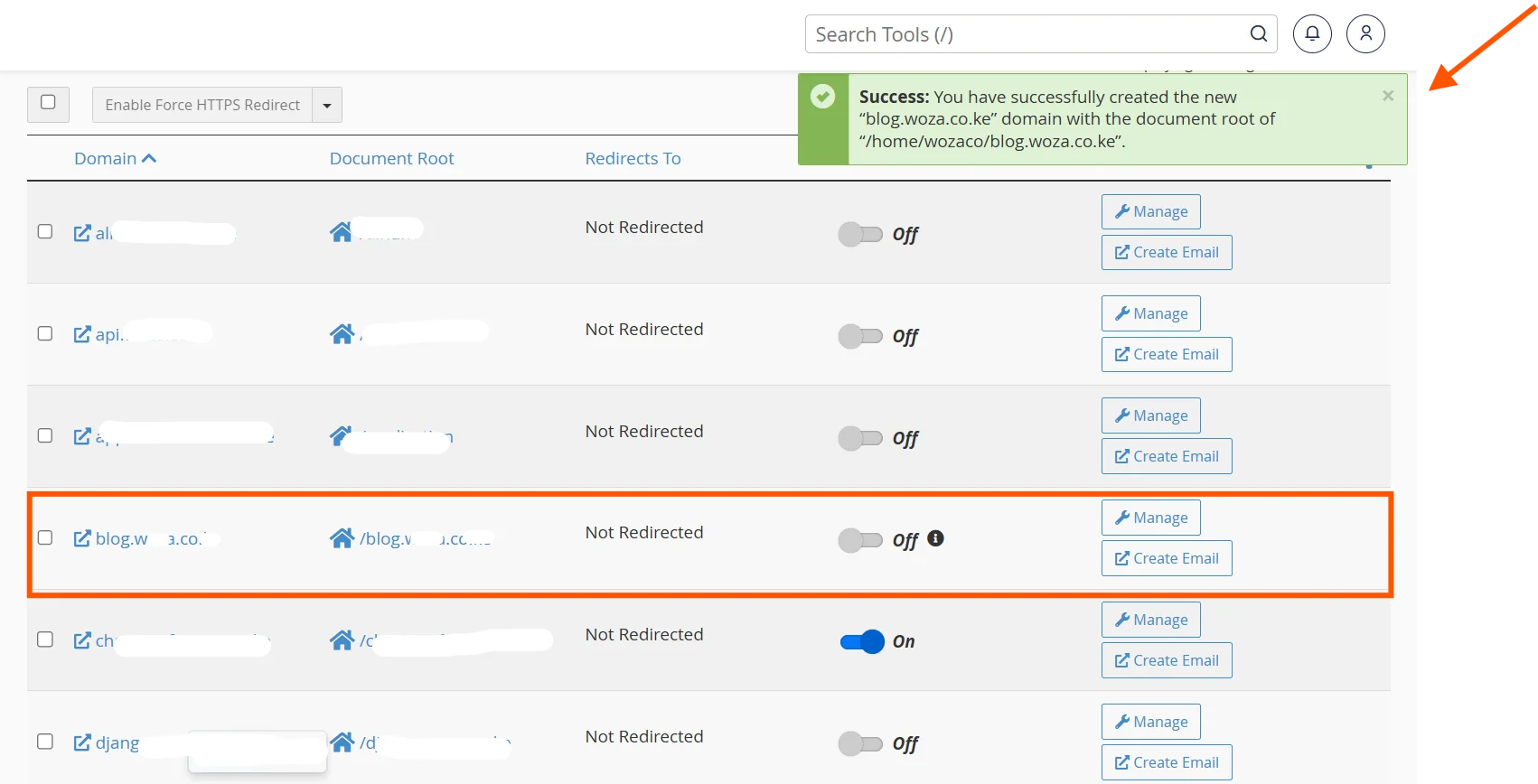
Once your details are filled in, click the Submit button.
cPanel will process the request and display a confirmation message. This usually takes a few seconds.
You’ll be returned to the Domains list, where your new subdomain will appear alongside your other domains.
Managing Subdomains in cPanel
After creating a subdomain, it’s important to know how to add content to it, keep it organized, and make changes when needed.
Here’s how to handle each of these tasks:
Uploading Content to the Subdomain
Creating the subdomain only sets up the structure. The folder is empty until you put something in it.
To do this:
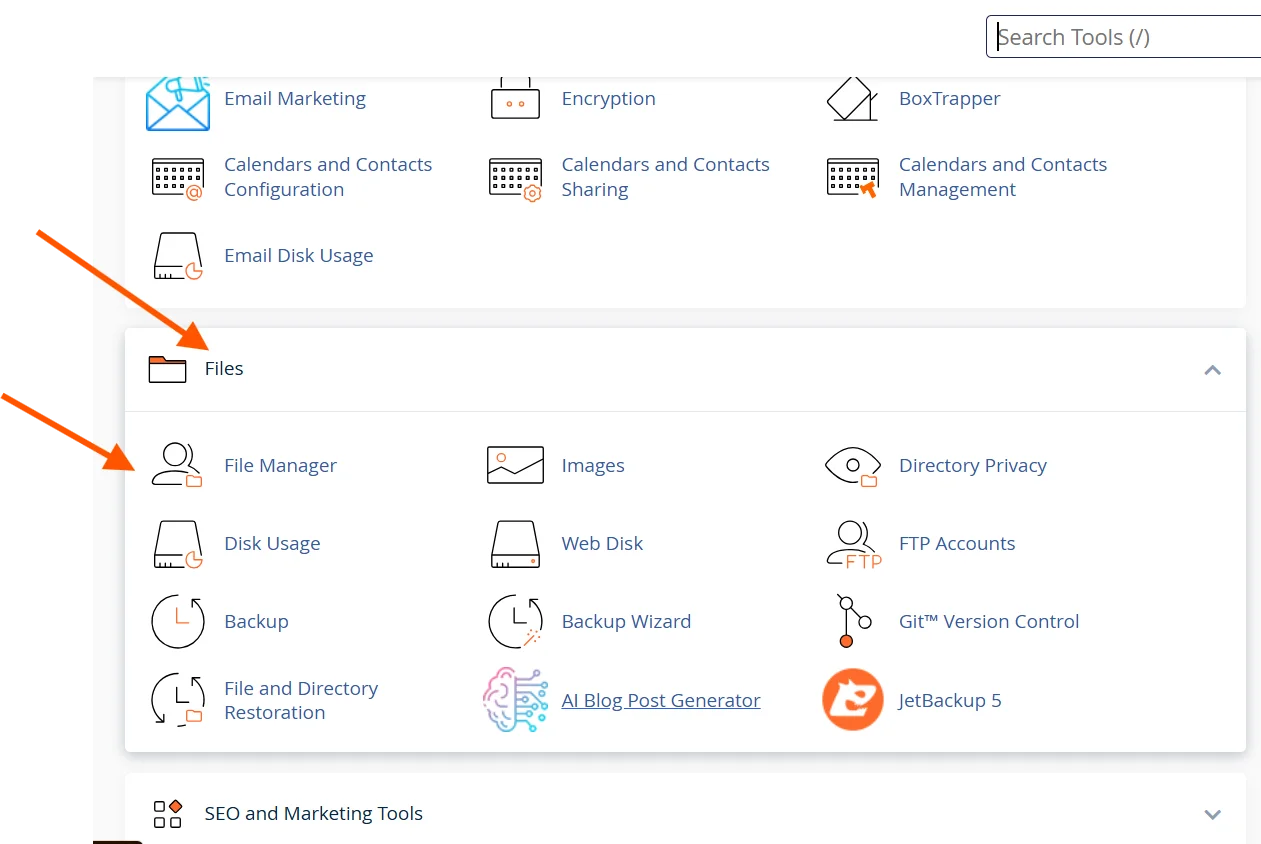
Go to the cPanel dashboard and click File Manager under the Files section.
In the left-hand folder panel, navigate to the document root folder you set for your subdomain
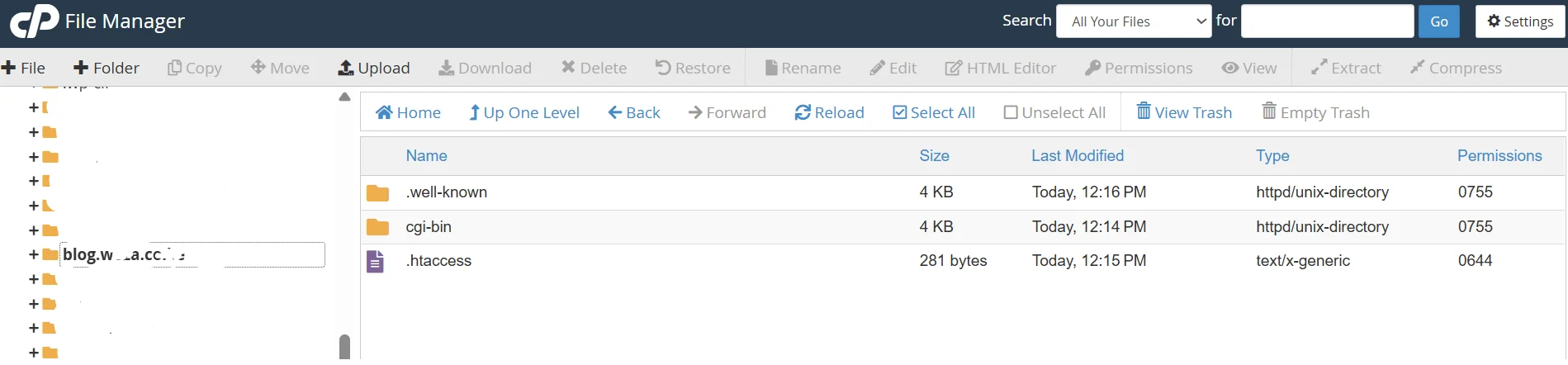
Upload your website files into that folder. You can drag and drop files directly into File Manager, or use the Upload button at the top of the screen.
If you’re installing WordPress or another CMS on the subdomain, go back to the cPanel dashboard and open Softaculous Apps Installer. During the installation, set the installation URL to your subdomain (e.g., blog.yoursite.com) rather than your main domain.
Managing or Removing Existing Subdomains
To view, edit, or delete subdomains you’ve already set up:
Go back to Domains in cPanel.
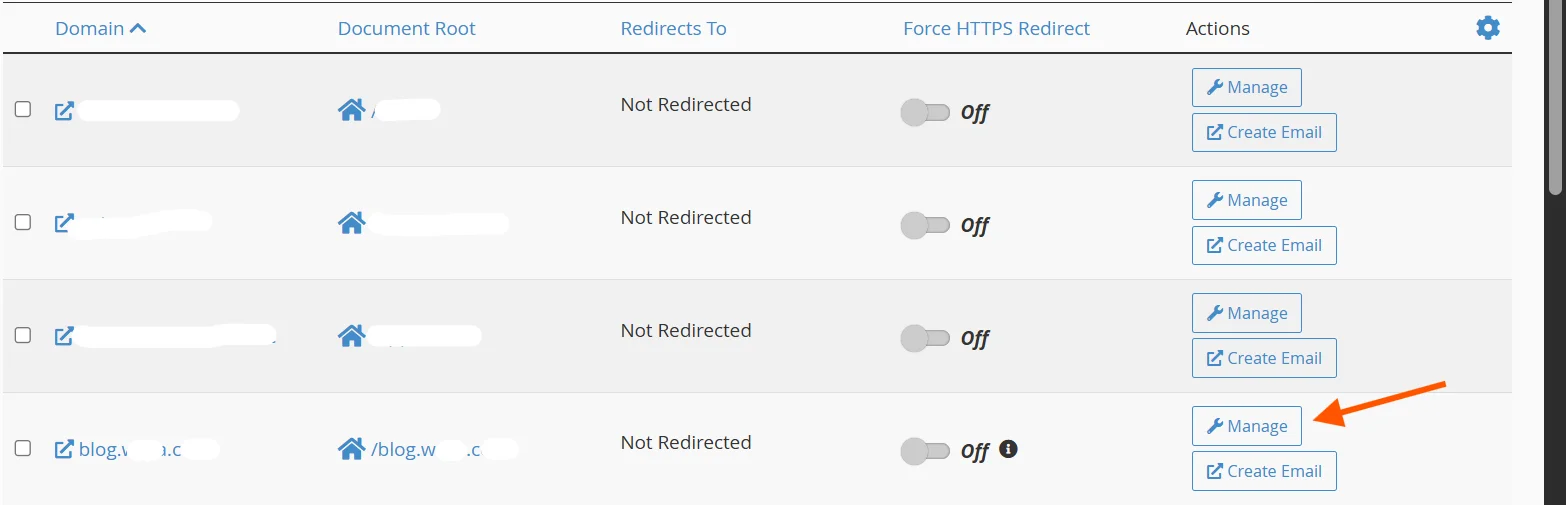
You’ll see the table listing all your domains and subdomains.
To the right of each, you’ll see action options.
Click Manage to change the document root or delete the subdomain.
Note that removing the subdomain here does not delete the files inside its folder. You’ll need to go to File Manager and delete the folder manually.
Set Up a Custom DNS Record (Optional)
If you want your subdomain to point to a different server or external IP address, you’ll need to add a DNS record manually.
To do this:
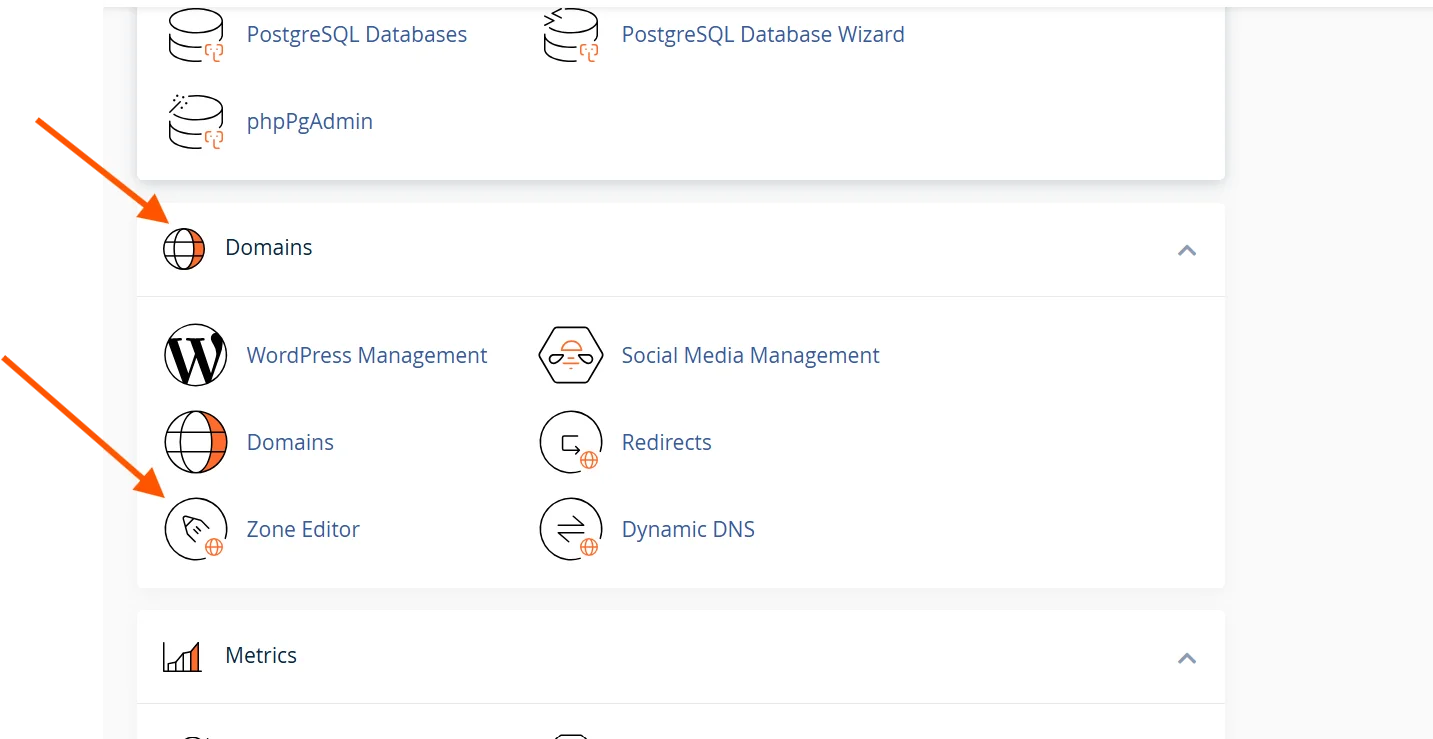
Go to the Domains section and click Zone Editor.
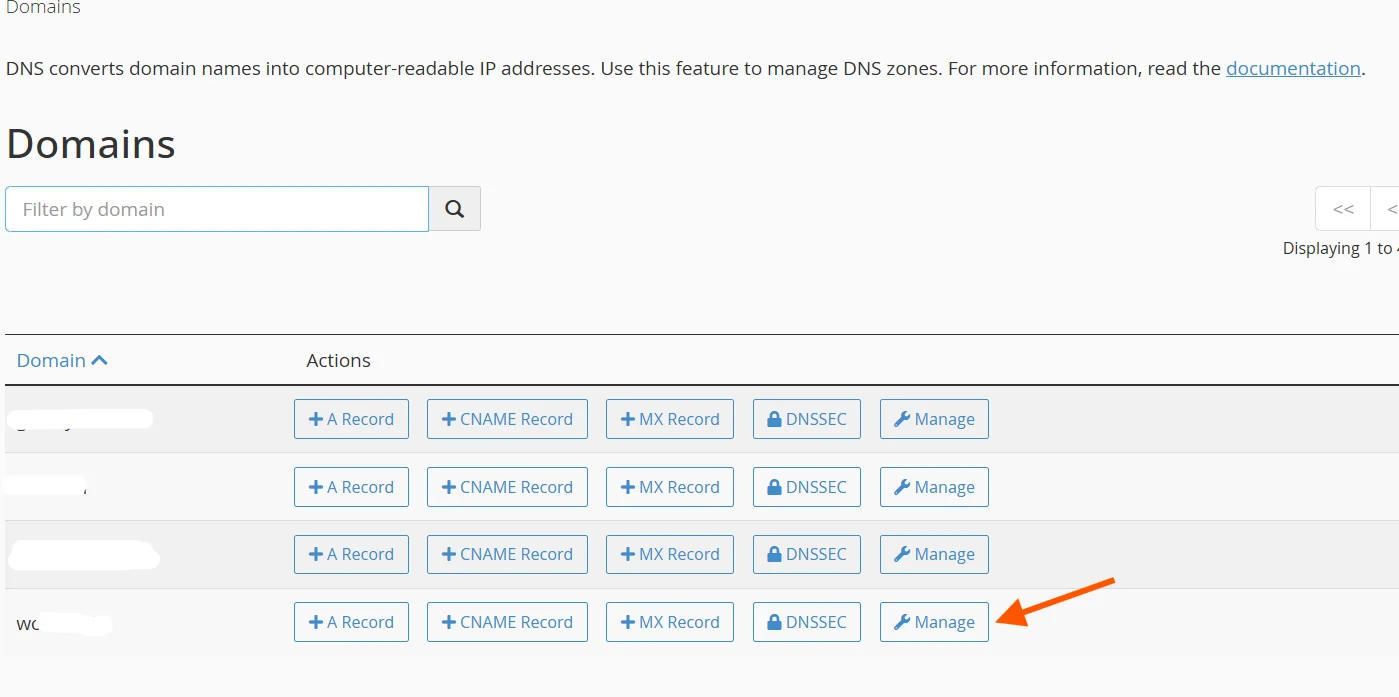
Find your main domain in the list and click Manage next to it.
You’ll see a table of existing DNS records. Click Add Record to create a new one.
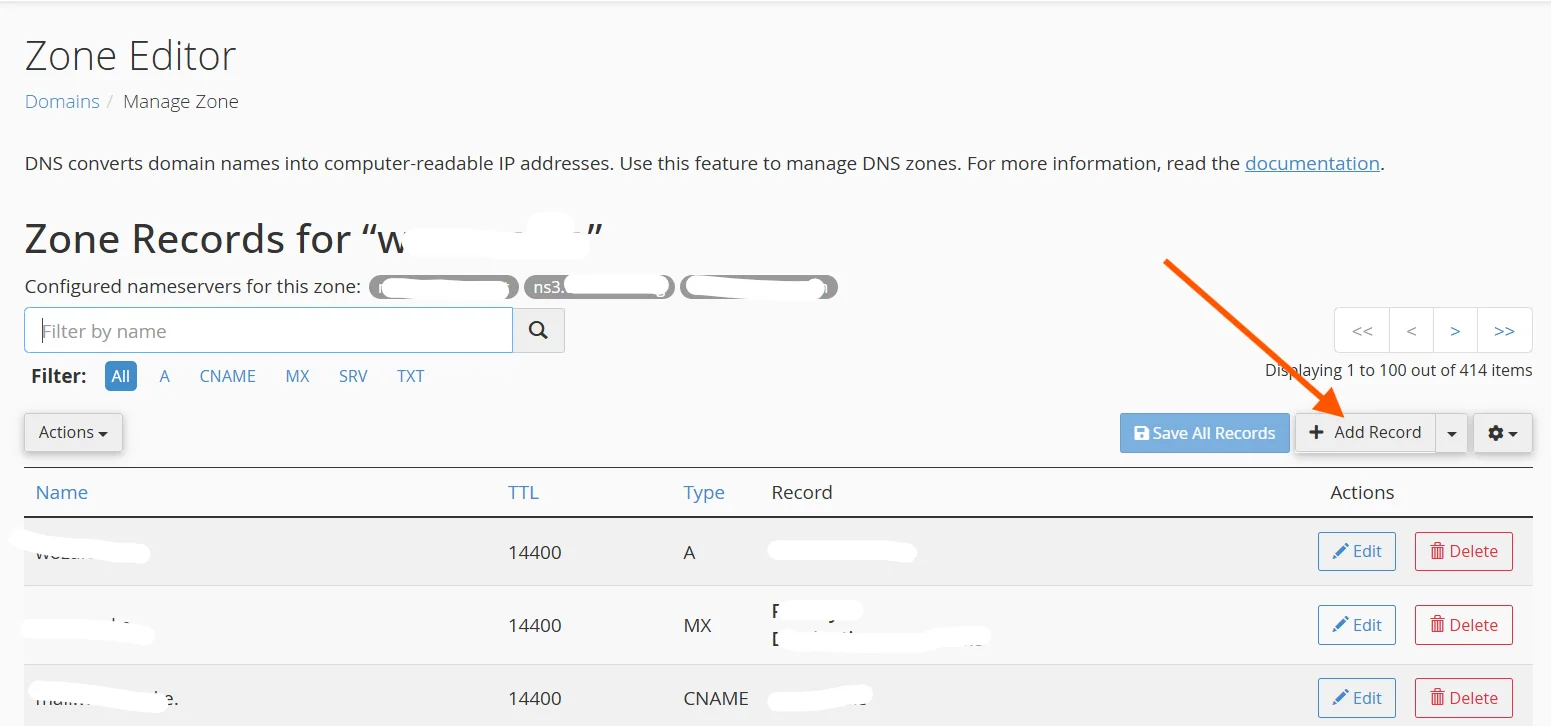
Set the record type to A Record, then fill in the fields:
- Name: Enter the full subdomain address, e.g., app.yoursite.com
- TTL: Leave this at the default value (usually 14400)
- Address: Enter the external IP address the subdomain should point to
Click Add Record to save.
DNS changes do not take effect instantly. Propagation across the internet can take anywhere from a few minutes to 48 hours, though most updates resolve within 1 to 4 hours.
Common Mistakes To Avoid When Setting Up Subdomains
Even though the process is quite straightforward, there are several pitfalls that trip up beginners. Knowing these in advance will save you a lot of frustration.
a) Forgetting to add content to the subdomain folder
As stated earlier, creating a subdomain only sets up the structure. If you navigate to your new subdomain and see a blank page or a 404 error, it means the document root folder is empty.
Always upload your files or install your application after creating the subdomain.
b) Using special characters incorrectly
In most instances, subdomain names can only contain letters, numbers, and hyphens.
To be safe, avoid underscores, spaces, or other special characters. They can cause DNS and browser compatibility issues.
Also note that hyphens can’t start or end a subdomain.
c) Ignoring DNS propagation time
After creating a subdomain, it may not be immediately accessible.
As earlier stated, DNS propagation can take anywhere from a few minutes to 48 hours. Don’t panic if the subdomain doesn’t work right away; give it time.
d) Setting the wrong document root
If you manually change the document root path, make sure the folder actually exists on your server. Pointing to a non-existent folder will result in errors when someone visits the subdomain.
e) Not securing the subdomain with SSL
A common oversight is securing the main domain with an SSL certificate but forgetting the subdomain. An unsecured subdomain will show a “Not Secure” warning in browsers.
To fix this:
- In cPanel, go to SSL/TLS or AutoSSL.
- Run AutoSSL or install a certificate that covers your subdomain.
- Alternatively, use a wildcard SSL certificate (*.yoursite.com). It automatically covers all subdomains.
f) Deleting a subdomain without removing its files
When you delete a subdomain in cPanel, it removes the subdomain configuration but not the actual files in the document root. These files remain on your server and take up storage.
Always go to the File Manager and delete the folder manually after removing a subdomain.
g) Confusing subdomains with subdirectories
A subdirectory looks like yoursite.com/blog. It’s a folder within your main site.
A subdomain looks like blog.yoursite.com. It’s a separate entity.
These serve different purposes.
Subdirectories are generally better for SEO if you want to consolidate domain authority, while subdomains are better when the content or platform is genuinely distinct.
h) Creating too many subdomains
It’s tempting to create a subdomain for everything.
But too many subdomains can confuse users, spread your content too thin, and make management more difficult.
Only create subdomains when there’s a clear need.
How Truehost Can Help
While cPanel makes subdomain management accessible, your hosting provider plays a bigger role than you might realize.
Here’s how Truehost can help:
SSL Certificate Coverage
Truehost offers free SSL certificates for security. If you’re unsure whether your subdomains are covered, you can contact us to clarify.
DNS Management Support
If you need to point a subdomain to an external server or service, we can help you configure the right DNS records. This is especially useful if you’re integrating third-party tools like email platforms, app servers, or CDNs.
Staging Environments
We offer one-click staging subdomain creation on select plans, particularly for WordPress hosting. This makes it easier to test updates without risking your live site.
Technical Support
If your subdomain isn’t resolving correctly, shows errors, or has misconfigured settings, our support team can diagnose the issue.
Problems with DNS zones, server configurations, or SSL certificates often require server-level access.
Note that our support team is available 24/7/365, ensuring you get help whenever you need it.
Performance and Security
Truehost can offer subdomain-specific settings for caching, firewalls, and content delivery on eligible plans.
If you’re running a high-traffic application on a subdomain, you can reach out about optimizing that subdomain independently for better performance.
Final Thoughts
Subdomains are one of the most useful tools you have for organizing and growing your website.
They’re free to create, simple to manage, and flexible enough to serve almost any purpose.
If you follow the steps outlined in this article, you’ll be able to create and manage subdomains with confidence.
In case you need any help or have questions, contact us. We’re always happy to help.