Web HostingBudget-friendly shared hosting plans
 Domains SearchFrom .com to unique country domains, explore and register extensions worldwide.
 WordPress HostingPower your blog or business with WordPress hosting.
 Email HostingSimple, secure email hosting that helps you stay connected and professional.
 Reseller HostingStart your own hosting business with easy and reliable reseller hosting plans.
 AffiliateJoin our affiliate program and earn commissions every time you bring in new customers.
 cPanel HostingHosting powered by cPanel, the world’s most user-friendly control panel.
 Windows HostingBuilt for Windows applications and websites
 IN Domain PricesDon’t miss out on the best domain deals in India!
 WHOIS LookupFind out who owns a domain name with a quick and easy WHOIS search.
 Domain TransferTransfer your domain to us and enjoy reliable support every step of the way.
 .Com DomainGet the most trusted domain for worldwide credibility
 All TldsSearch and register domain extensions worldwide.
 SSL CertificatesProtect your website with trusted SSL certificates and keep customer data safe.
 VPS HostingPowerful virtual servers. Full root access. Reliable uptime.
 Managed VPS HostingNot a tech expert? Choose our fully managed VPS service.
 Dedicated ServersTake full power and total control of your own physical server.
 AI Website BuilderCreate stunning websites instantly with our easy AI builder.
 Online ShopBuild your eCommerce store easily, no coding, just growth.
 Web Design ServicesGet a website built for your brand and designed for your goals.
 Contact UsReach out to us for support or questions.
 SupportGet answers and how-to guides for all our services.
 BlogRead our latest blogs on web hosting, online business, digital marketing, and other helpful topics.
If your emails are not reaching the right inbox, it can quickly become a serious problem.
You might miss client inquiries, lose important notifications, or appear unprofessional without even realizing it.
When this happens, the issue is usually your email routing settings.
If your domain uses cPanel, you actually have an easy way to control exactly how your emails are handled.
But if you’ve never touched these settings before, the options can feel confusing.
That’s exactly what this guide is for.
By the end, you’ll know what email routing is, why it matters, and how to configure it correctly in cPanel.
What Is Email Routing?
Email routing is the process of directing incoming emails to the correct mail server.
When someone sends a message to your domain, email routing determines where that message should be delivered.
Without correct routing, your server may attempt to process emails that are meant for another provider.
This leads to emails bouncing or ending up in the wrong place entirely.
Email Routing vs. Email Forwarding
Although email routing and email forwarding are related, they serve very different purposes on your website.
The table below highlights the key differences:
| Feature | Email Routing | Email Forwarding |
| What it does | Directs incoming email to the correct mail server | Copies or redirects email from one address to another |
| Where it’s set | MX records / cPanel Email Routing | cPanel Forwarders section |
| Level of control | Domain-wide | Per email address |
| Use case | Choosing mail server location | Sending copies to another email |
| Affects all emails? | Yes, for the entire domain | No, only the specific address configured |
To get more information on email forwarding, read this article.
When Businesses Use Email Routing
Email routing is commonly used in situations where email handling is separated from web hosting.
Some of the common scenarios where businesses need to configure email routing include:
1) Using Third-Party Email Providers – One of the most common scenarios is when a business uses a third-party email provider such as Google Workspace or Microsoft 365.
In this case, the hosting server should not attempt to receive emails locally.
Routing must be set to remote so that all messages are handled by the external provider.
2) Migrating Email Services – When a business is moving from one email provider to another, proper email routing ensures that messages continue to flow without interruption.
If routing is misconfigured during migration, emails may bounce or get lost.
3) Hybrid Email Setup – Some businesses choose to host their website on a cPanel server while managing email through a different provider.
In this type of setup, email routing ensures that incoming messages are directed to the correct external server instead of being processed locally.
4) Backup or Redundancy Systems – In more advanced environments, businesses may configure backup mail servers.
Email routing allows a secondary server to temporarily store incoming messages if the primary server becomes unavailable, ensuring no emails are lost during downtime.
5) Development or Staging Environments – Developers often work with staging sites where sending real emails could cause confusion.
Email routing can be configured to redirect or isolate emails in these environments, preventing accidental messages from reaching actual users.
Email Routing Options Included in cPanel
cPanel provides 4 main email routing options, each designed for a specific type of setup.
Choosing the correct option is essential to ensure that your emails are delivered properly.
a) Local Mail Exchanger
This option tells your server to handle all incoming emails locally.
It means that your email accounts are created and managed within cPanel itself.
This is the right choice if your hosting server is also your email server.
b) Remote Mail Exchanger
This option directs all incoming emails to an external email provider.
Your cPanel server will not attempt to process emails at all.
This is the correct setting when using services like Google Workspace, Microsoft 365, or Zoho Mail.
c) Backup Mail Exchanger
With this option, your server acts as a backup mail server.
It temporarily stores incoming emails if the primary mail server is unavailable.
Once the main server is back online, the stored emails are delivered.
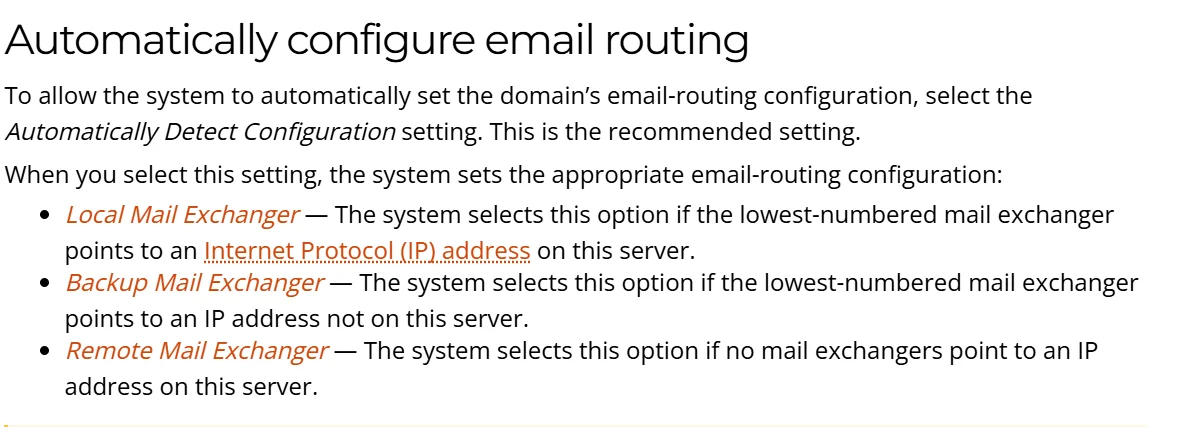
d) Automatic (Recommended by cPanel)
This setting allows cPanel to automatically determine the correct routing based on your domain’s MX records.
While it works well for simple setups, it may not always be accurate in more complex configurations.
This is why manual selection is often safer.
Here’s how cPanel decides:
How to Configure Email Routing in cPanel
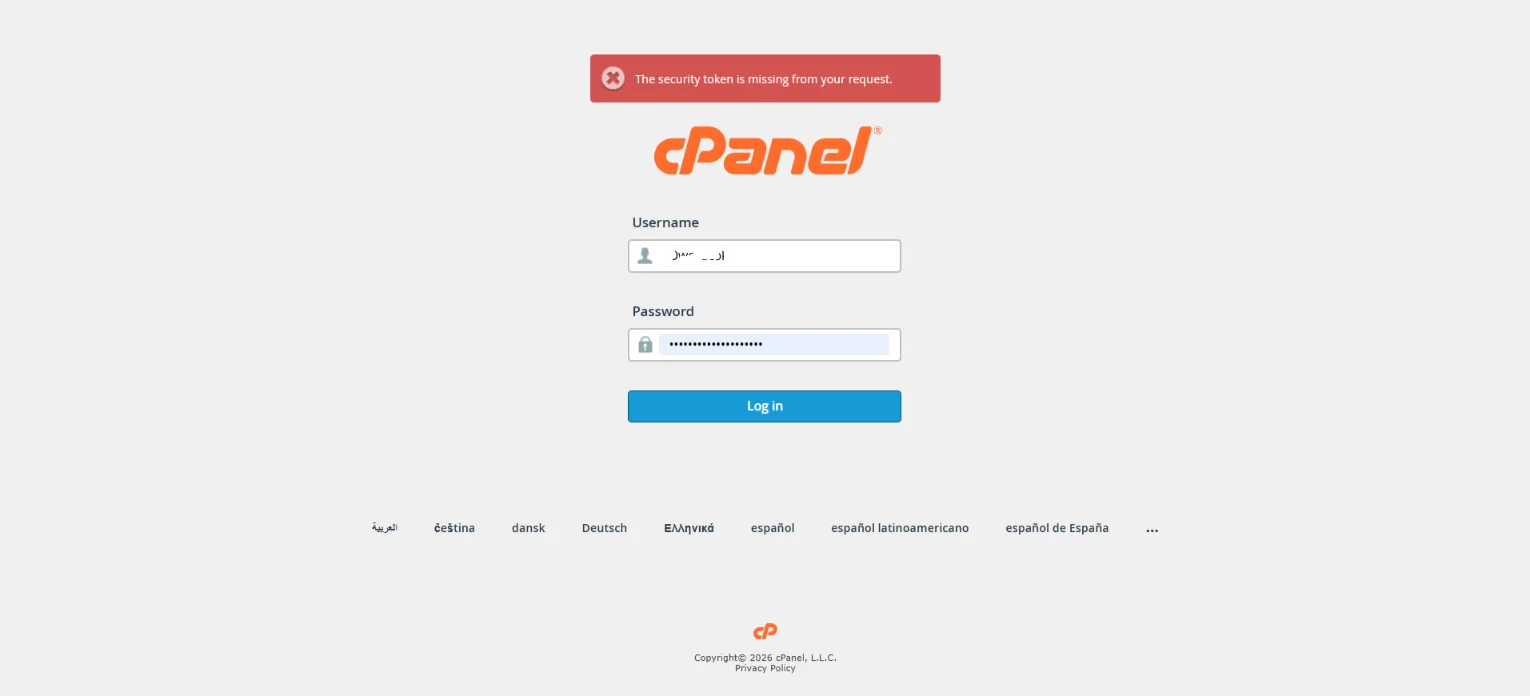
Step 1) Log Into cPanel
Start by accessing your cPanel account through your hosting provider.
Once you log in, you will see the dashboard where all tools and settings are available.
Step 2) Navigate to Email Routing
Scroll down to the Email section of your cPanel dashboard.
Here, you will find an option labeled Email Routing.
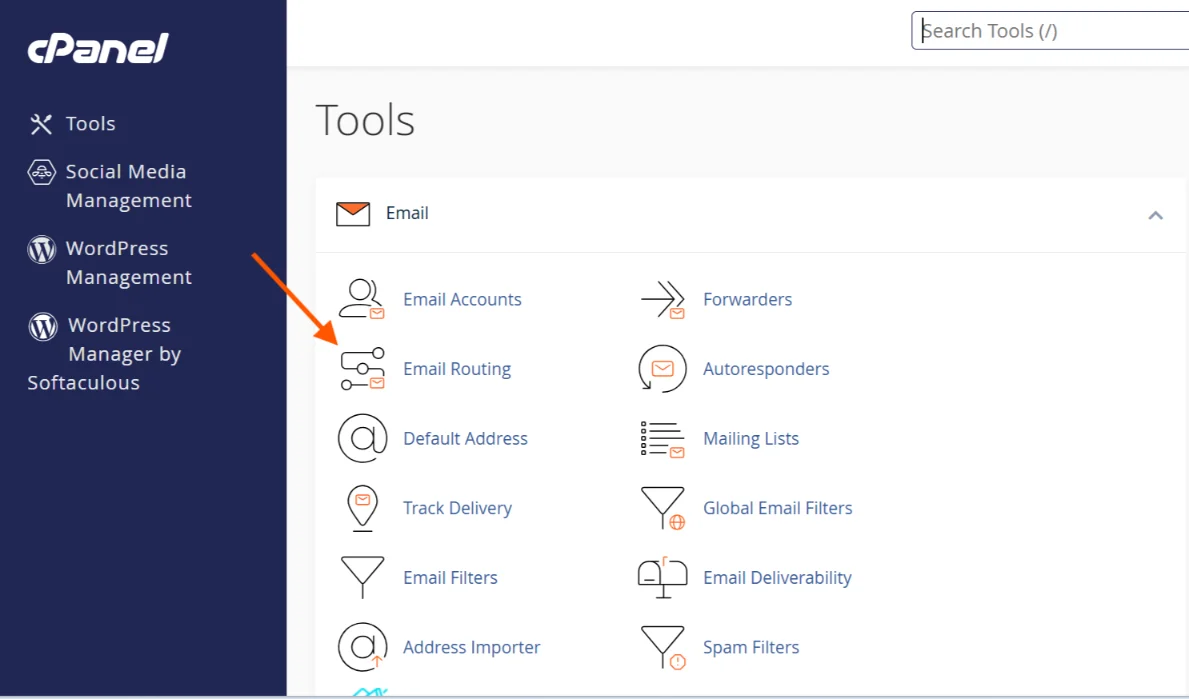
Clicking on it will take you to the configuration page.
Step 3) Select the Correct Domain
If your account manages multiple domains, you will need to choose the one you want to configure from the drop-down menu.
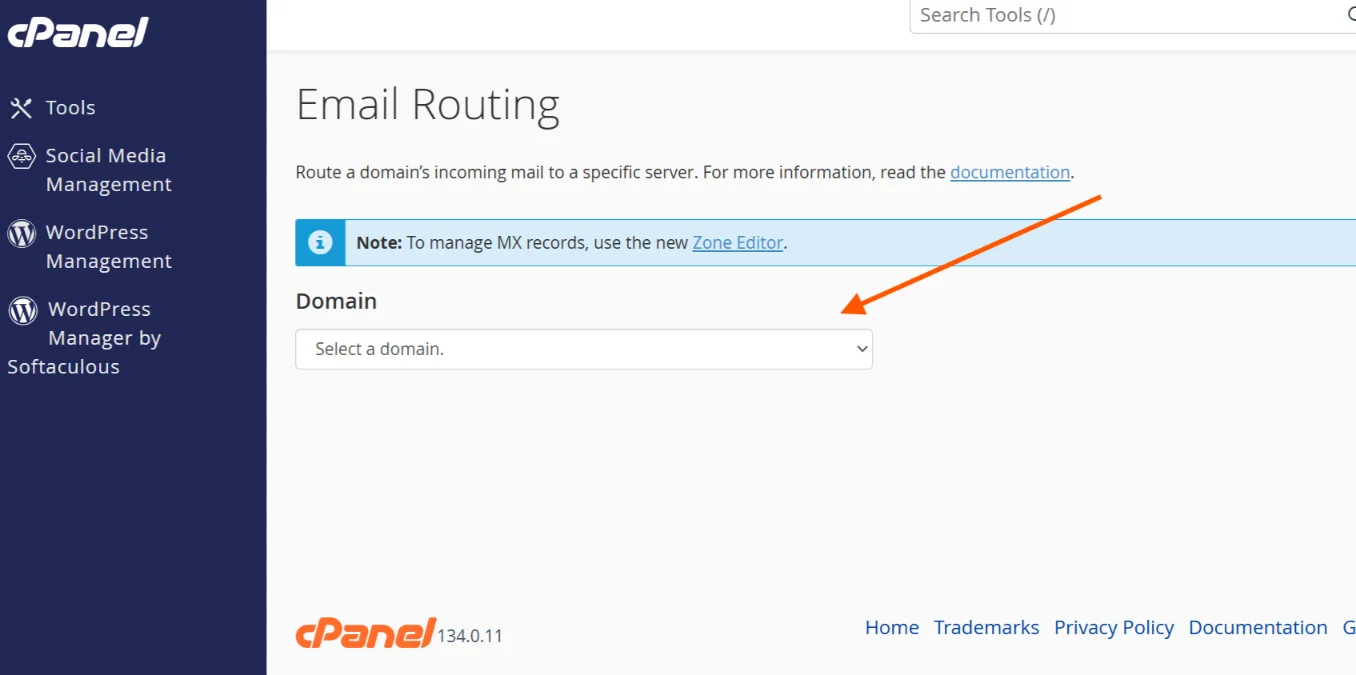
Make sure you select the correct domain before making any changes.
Step 4) Review MX Records
Before selecting a routing option, it is important to check your MX records. These records define where emails should be delivered.
You can view them in the Zone Editor within cPanel.
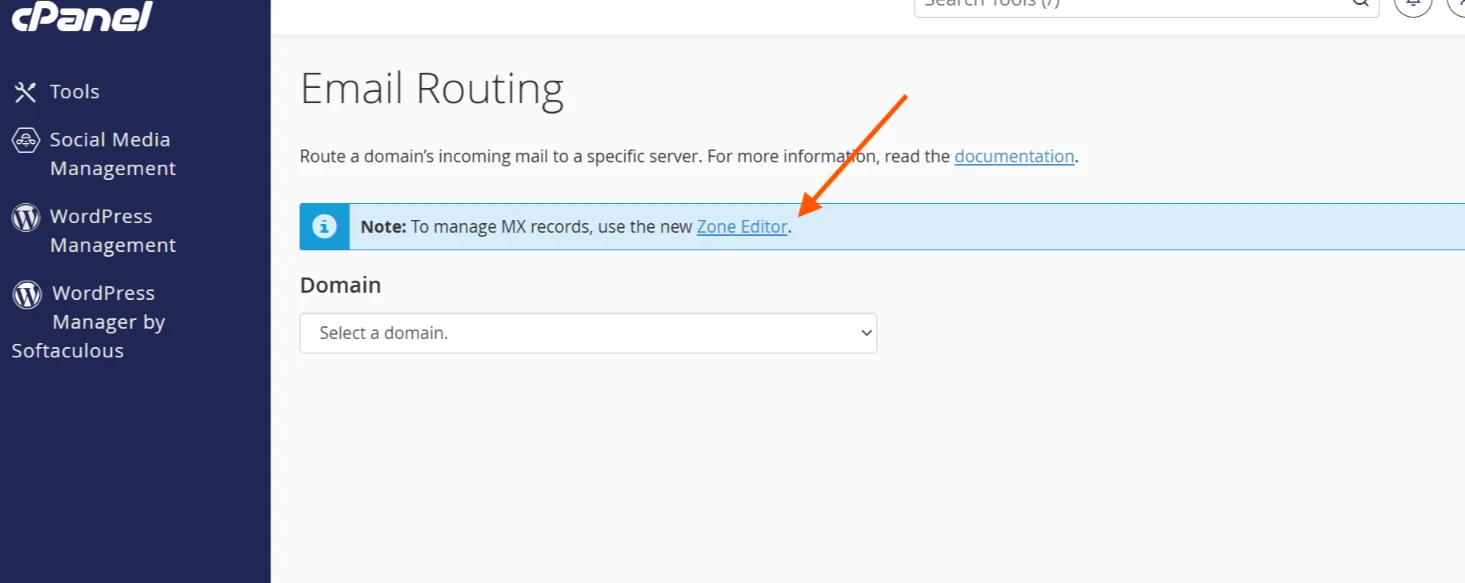
Ensure that your MX records match your intended email provider.
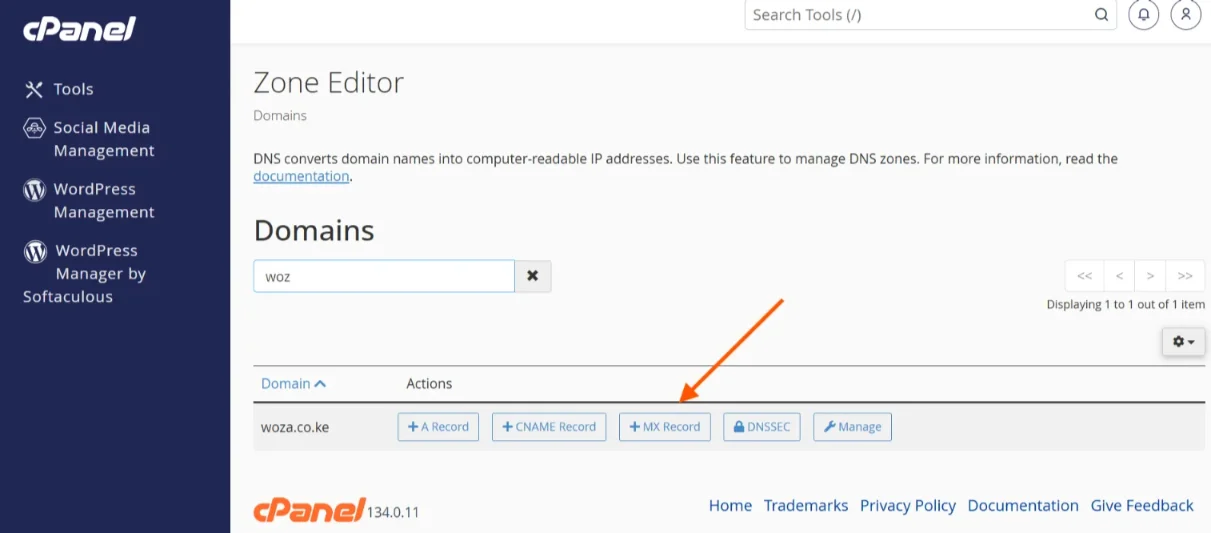
For example, if you are using Google Workspace, your MX records should point to Google’s mail servers.
Step 5) Choose the Appropriate Routing Option
At this stage, you need to select the routing type that matches your setup.
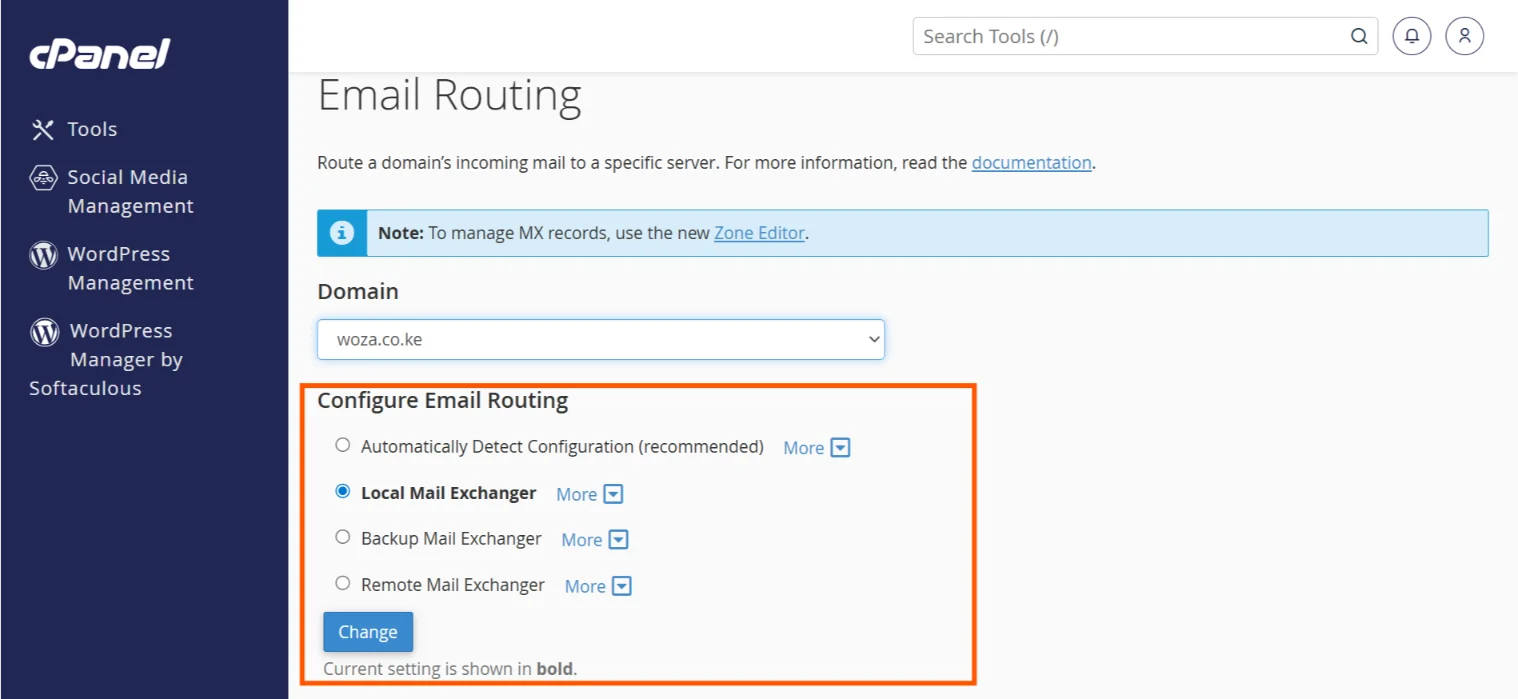
- If your email accounts are hosted in cPanel, you should choose Local Mail Exchanger.
- If you are using an external provider, you should select Remote Mail Exchanger.
- If your hosting account should act as a backup mail server, choose Backup Mail Exchanger.
It is important to make this decision carefully because an incorrect setting can disrupt email delivery.
If you’re unsure of what routing option to take, choosing the automatic option can save you the hassle.
Step 6) Save Your Changes
After selecting the correct option, click the button to apply or save your changes.
cPanel will confirm that the update has been successful.
Step 7) Verify the Configuration
Once the changes are saved, it is a good idea to double-check your settings.
Confirm that your routing selection matches your MX records and overall email setup. This helps prevent issues later on.
Testing Email Routing
After configuring email routing, testing ensures that everything is working as expected.
Here’s how to do it:
a) Send a Test Email – The simplest way to verify your setup is by sending an email to your domain, such as [email protected].
If the email arrives in the correct inbox, it is a sign that your routing is configured properly.
b) Test from Multiple Providers – It is important to send test emails from different providers like Gmail and Outlook.
This helps confirm that your email system works consistently across various platforms and is not limited to a single provider.
c) Check Spam or Junk Folders – Sometimes emails are delivered but end up in the spam folder instead of the inbox.
Always check both locations to ensure that messages are not being filtered incorrectly.
d) Use Email Tracking Tools in cPanel – cPanel provides tools such as Track Delivery or Email Trace.
These tools can help you identify delivery failures, delays, or routing issues.
Why Reliable Email Hosting Matters
You’ve seen how email routing works and how important it is to configure it correctly in cPanel.
But here’s something just as important to note: Even the best routing setup won’t save you if your email hosting is unreliable.
Email routing simply tells your domain where emails should go.
However, the quality of the hosting provider determines how well the emails are handled.
Here’s why I recommend choosing Truehost:
1) Seamless Integration with cPanel
Since this guide focuses on cPanel, it’s important to use a hosting provider that fully supports it.
With Truehost, cPanel is tightly integrated into the hosting environment.
This makes it easier to:
- Configure email routing correctly
- Manage MX records
- Access tools like Track Delivery, and Zone Editor
2) Reliable Email Delivery After Routing
Once you’ve set your email routing to either local or remote, your hosting provider plays a major role in ensuring emails are handled properly.
At Truehost, we ensure:
- Emails sent from your domain are properly authenticated
- Incoming messages are processed without delays
- There are minimal chances of emails bouncing due to server issues
This is particularly important if you are running a business where communication must be consistent.
3) 24/7/365 Support For When Things Go Wrong
Let’s be honest. Email issues can still happen, even with the correct routing setup.
You might run into:
- DNS conflicts
- Incorrect MX records
- Misaligned routing settings
When that happens, having access to responsive support makes all the difference.
With Truehost, you’ll get technical support from personnel who understand cPanel and email configurations.
This will help you resolve issues faster instead of guessing your way through them.
4) Security That Supports Your Email Configuration
Email routing works closely with other configurations like SPF, DKIM, and DMARC.
Without these, even correctly routed emails may end up in spam folders
Truehost supports these features, making it easier to:
- Authenticate your domain
- Protect against spoofing
- Improve email deliverability.
5) Scalability as Your Needs Grow
As your website or business grows, your email requirements will also increase.
You may need more inboxes, better storage, or integration with external email services.
The email hosting plans from Truehost are designed to grow with you.
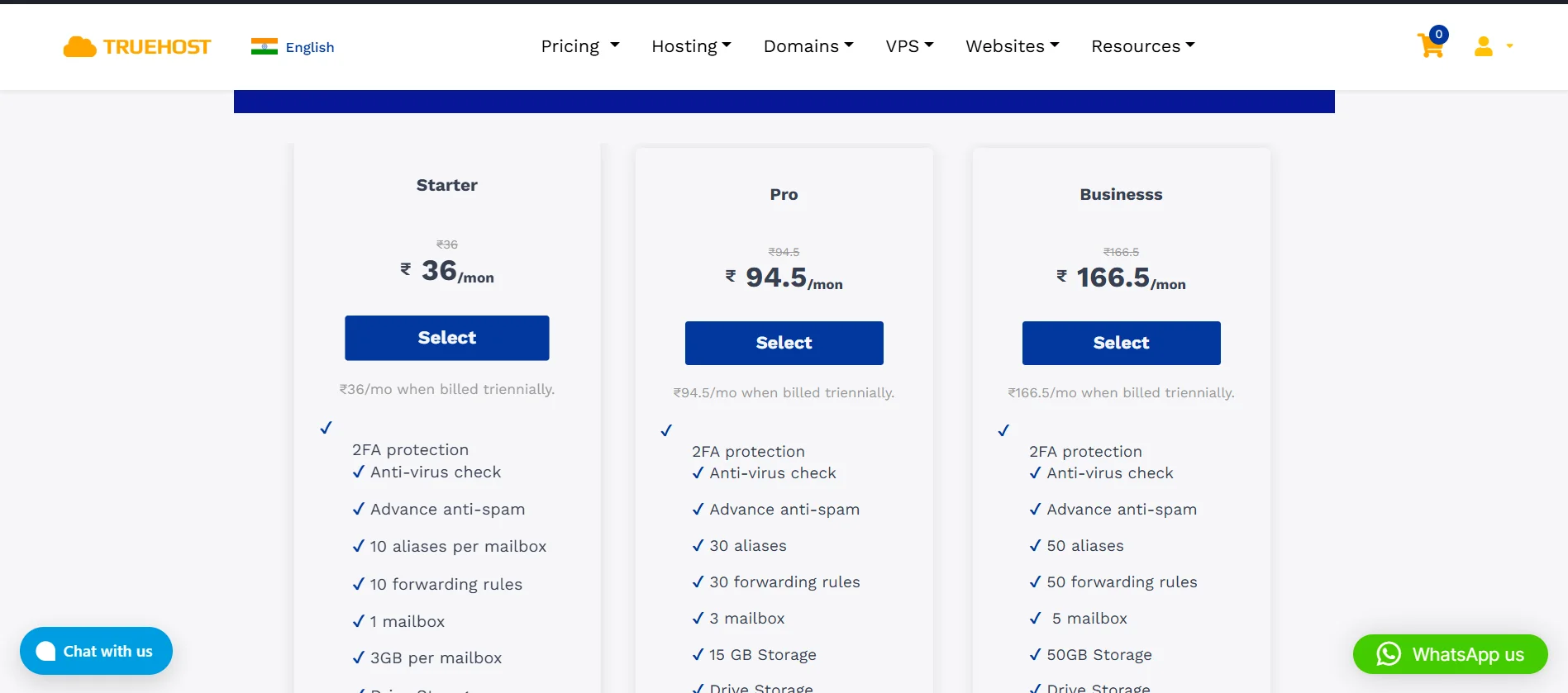
This flexibility ensures that your email system continues to function smoothly as your needs evolve.
Conclusion
As you’ve seen, setting up email routing is a small step that makes a big difference.
When everything is aligned, your email system works seamlessly. Messages reach the right inbox, communication flows without interruption, and your business maintains a professional image.
But this can’t happen with poor hosting.
If you’re serious about making your email system work the way it should, now is the time to take the next step.
Get started with professional email hosting from Truehost.